Getting started · Guide
Sign in with a passkey
No password to remember or type. Your phone or computer proves it's you, with your face, your fingerprint or its screen lock.
A passkey is made by your device and kept there, or in your password manager, so there's nothing anyone can phish or guess. Clova keeps only its public half.
Make an account with one
- Select Log in / Sign up, then Create one.
- Choose a username, and select Create a Passkey. (To make a password instead, select Use a password instead.)
- Select Create account, and let your device save the passkey.
Sign in
- On the sign-in page, select Sign in with a passkey.
- Confirm it's you on your device.
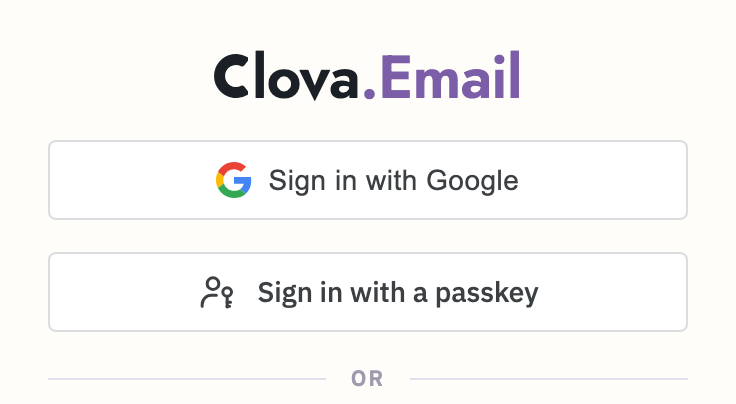
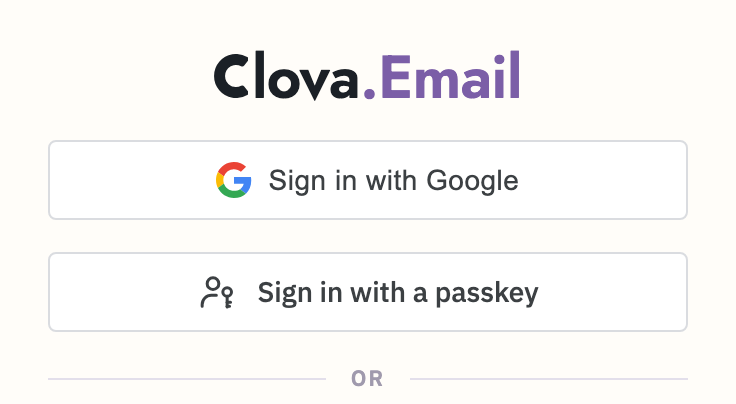
You can also start typing your username: the box offers the passkeys this device has.
Add one to your account
If you sign in with a username and a password, you can add passkeys too:
- In Settings, under Account, find Passkeys and select Add.
- Confirm it's you with your password, or a passkey you already have.
- Select Make passkey, and let your device save it.
Add one for each device that doesn't share this one's password manager: a second phone, or a security key.
If you lose it
On the sign-in page, select Lost your passkey?. Clova sends a link to your confirmed recovery email, where you can make a new passkey. The old ones stop working.
Good to know
- Your only passkey stays
- The last passkey on an account can't be removed. Add another first if you want to replace it.
- Google and Apple accounts
- An account you sign in to with Google or Apple uses that account to sign in, and has no passkeys here.
Did this help?
Thank you for telling us.