Privacy and security · Guide
Personal access tokens
A script or an AI assistant needs to use your mail, with only the access you choose, and you want to be able to take it back.
A personal access token lets a program use your account through Clova's API, with only the permissions you give it. Make one for a script, or for an AI assistant that can't sign in by itself. It can never touch your billing or change your plan, and you can revoke it at any time.
Make a token
- Select your name at the foot of the sidebar, or More on a phone, then Settings, then Developer.
- Select Create Personal Access Token.
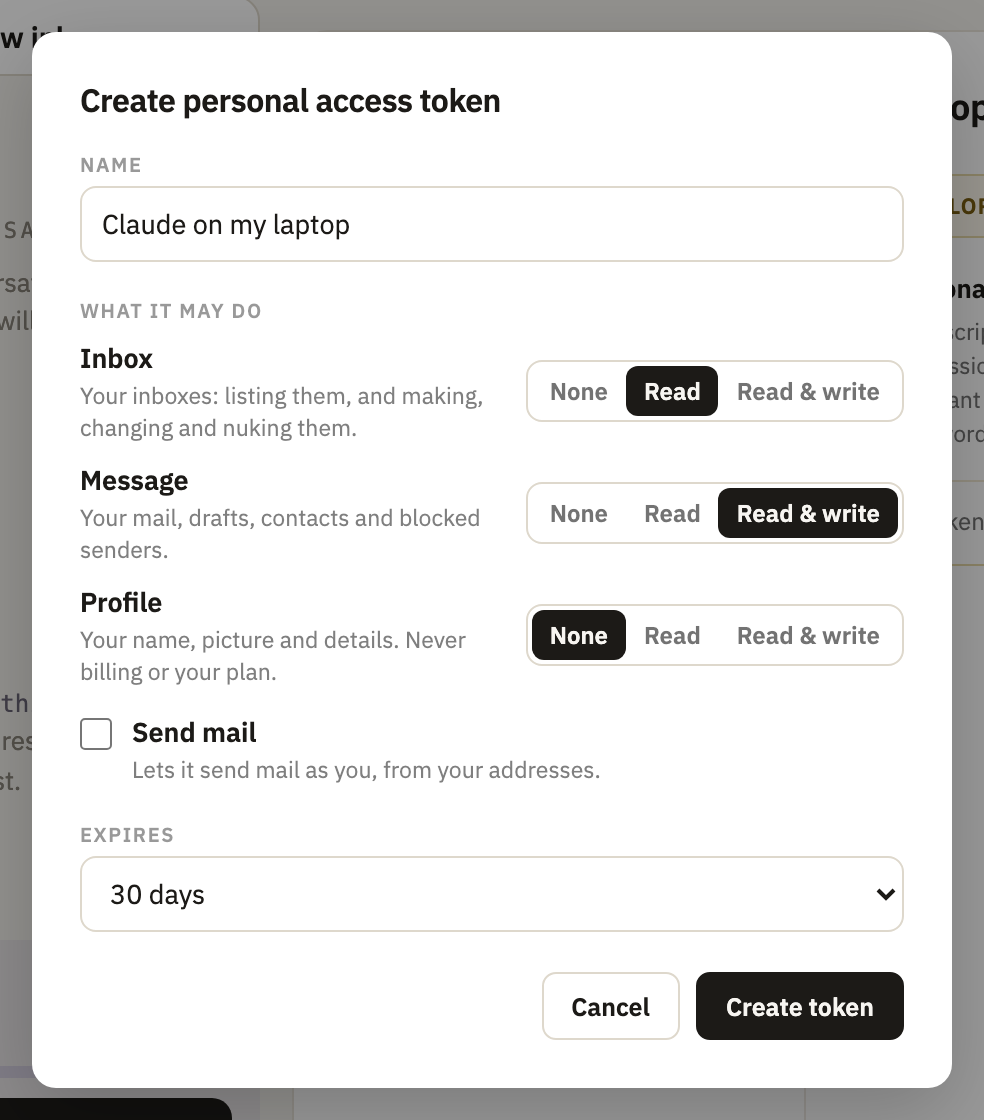
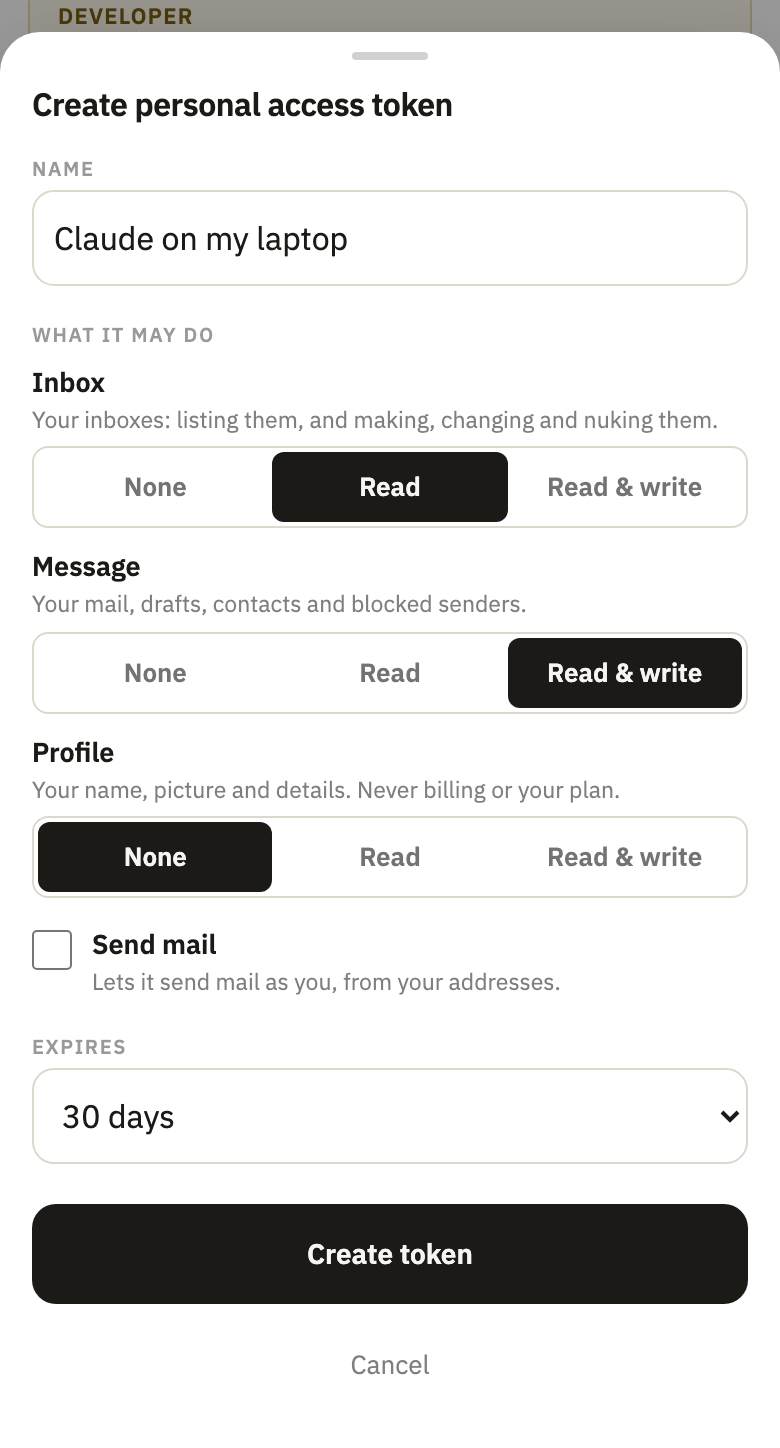
- Give it a Name that says what it's for.
- For Inbox, Message and Profile, select None, Read or Read & write.
- Tick Send mail only if it should send mail as you. It needs Message at Read & write.
- Under Expires, select 7, 30 or 90 days, or Never.
- Select Create token.
- Select Copy, and paste the token where it's needed: it's shown only this once. Then select Done.
Under the token, the same window has the settings for Claude Code, Cursor, VS Code and Claude Desktop, with the token already in them.
What a token can do
| Read | Read & write | |
|---|---|---|
| Inbox | Lists your inboxes | Also makes, changes and deletes them, including who a one-sender inbox takes mail from |
| Message | Lists, searches and reads your mail, drafts, contacts and blocked senders | Also marks mail read, pins and deletes conversations, writes drafts, edits contacts and blocks senders |
| Profile | Reads your name, birthday, phone and photo, and your plan and storage | Also changes your name, birthday, phone and photo |
Send mail sends your drafts. A token can never:
- reach billing, change your plan, or close your account;
- change how you sign in, the language, whether your photo is shown, or your footer;
- make an export, or change your forwarding;
- block a whole domain;
- make or revoke tokens.
Connect an assistant by signing in
Claude, ChatGPT, Claude Code, Cursor and VS Code can connect with no token to copy. Connect an AI assistant shows the address to add to each. When the assistant asks, sign in to Clova, select what it may do in each area, then select Allow.
It's then listed in Settings, under Developer, with App beside its name. It stays connected until you disconnect it, or until it goes 90 days without being used.
Revoke a token or disconnect an app
- Select your name at the foot of the sidebar, or More on a phone, then Settings, then Developer.
- Next to the token, select Revoke. For an app, select Disconnect.
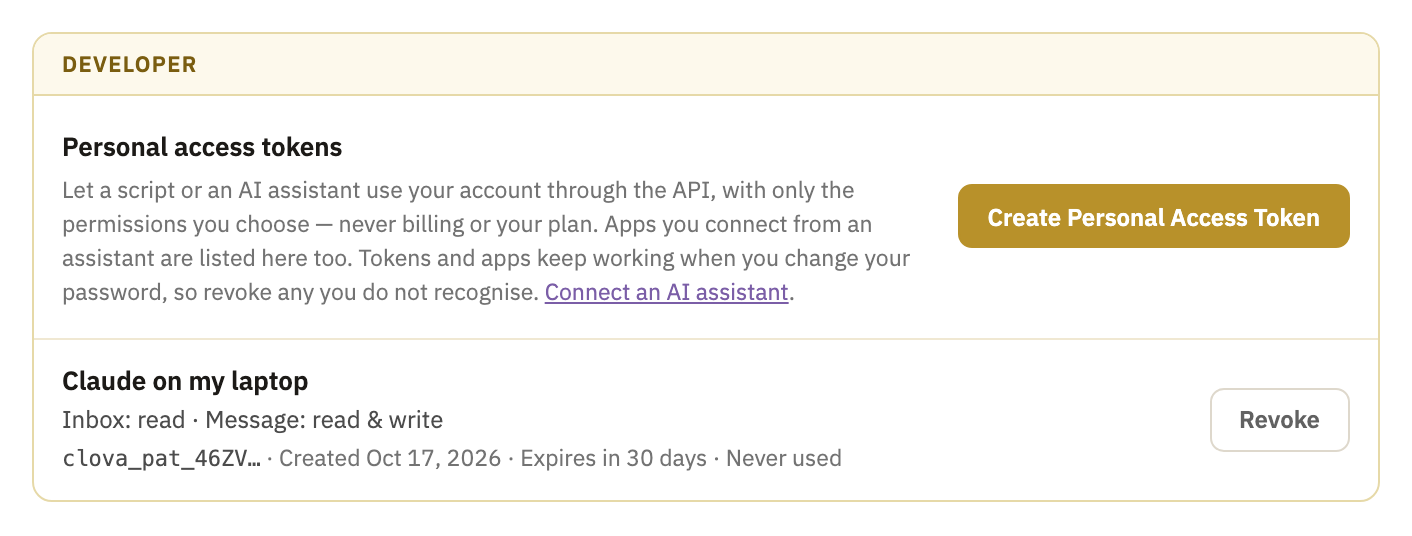
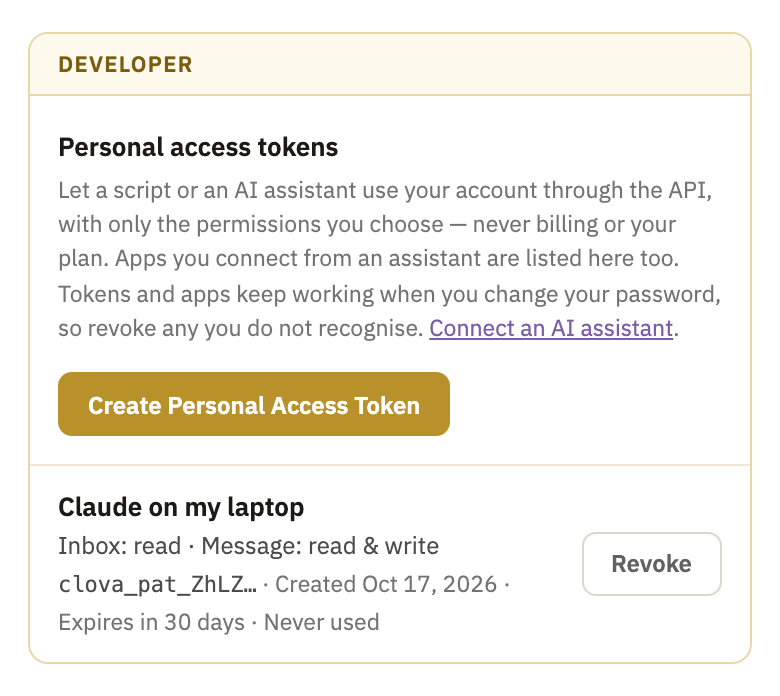
- Select Revoke or Disconnect again to confirm.
It stops working from its next request. An expired token has Remove instead, which takes it off the list.
Good to know
- Shown once
- Clova keeps only a scrambled copy of a token, so it can't show it again. If you lose one, revoke it and make another.
- A token that never expires
- It works until you revoke it, even if it leaks.
- 25 at a time
- Tokens and connected apps together, not counting expired ones.
- A new password doesn't stop them
- Changing your password leaves tokens and apps working.
- Closing your account
- Your tokens are deleted straight away.
Did this help?
Thank you for telling us.