Privacy and security · Guide
Change your password
You think someone else may know your password, or you want a better one.
Changing your password signs you out on every other device, and keeps you signed in on this one. You need the password you have now: if you've forgotten it, reset it from your recovery email instead.
Change it
- Select your name at the foot of the sidebar, or More on a phone, then Settings, then Account.
- Next to Change your password, select Change.
- Type your Current password, then the new one in New password and New password again.
- Select Change password.
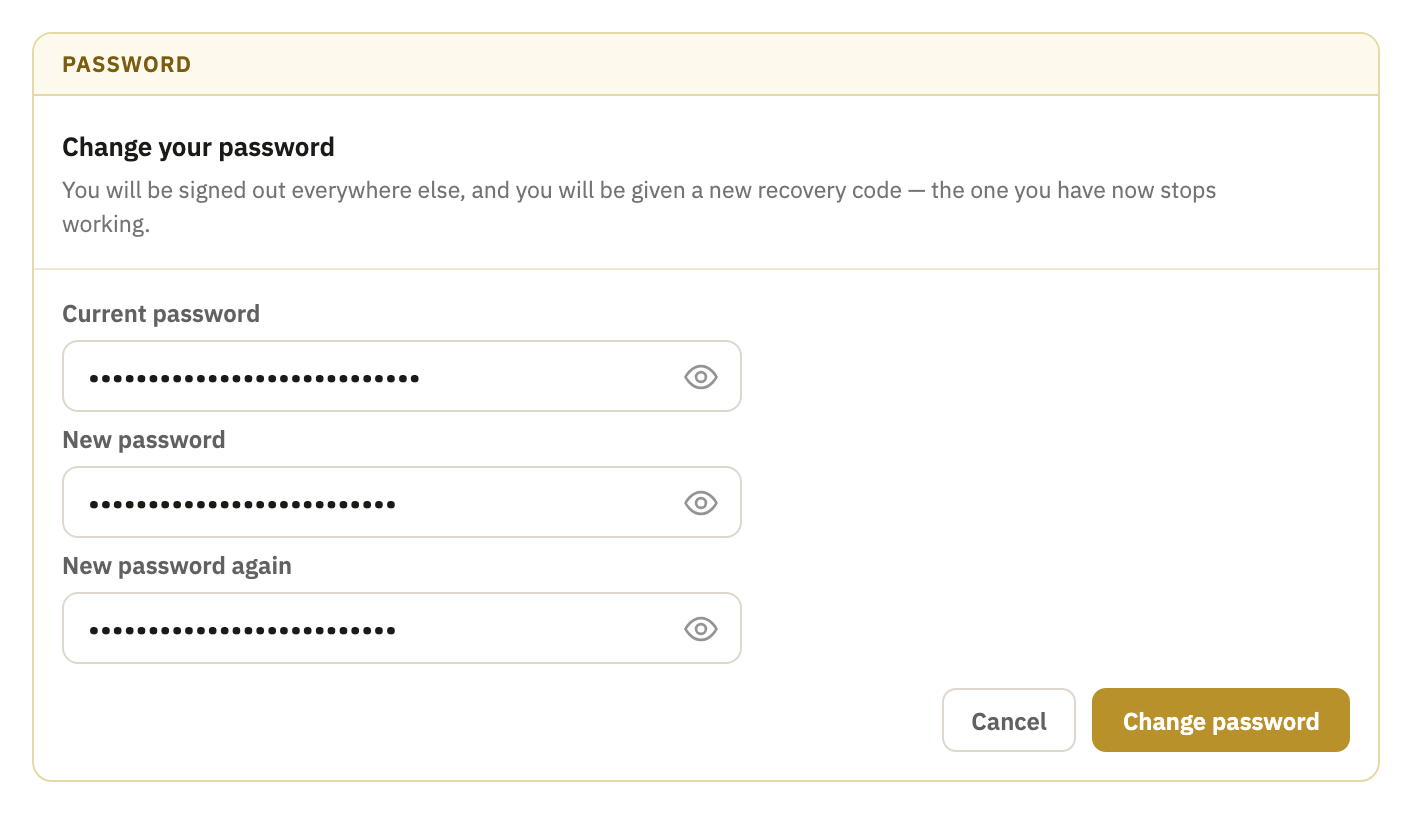
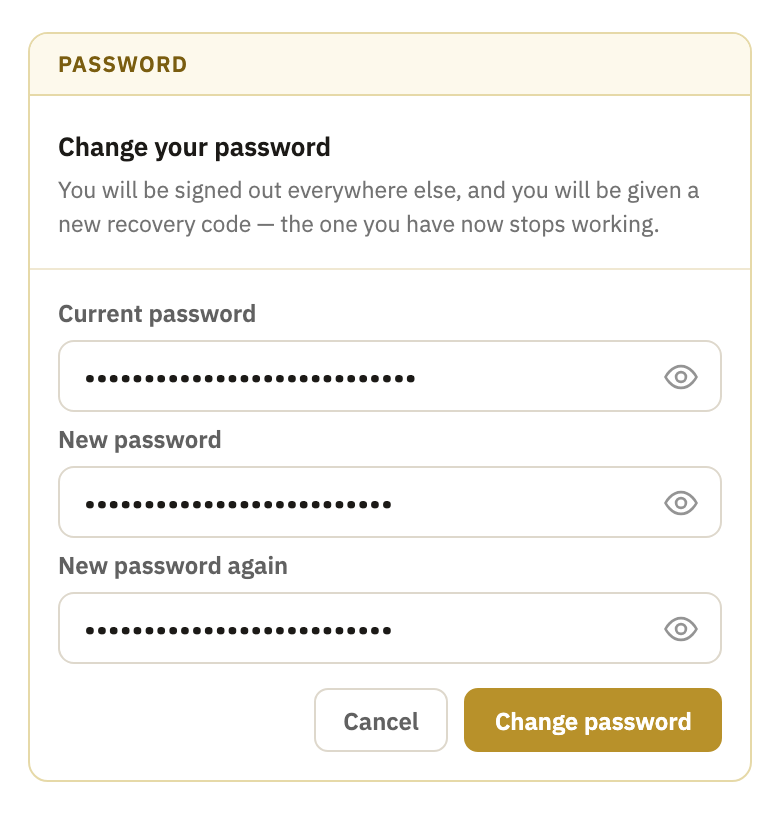
- Clova then shows a new recovery code. Select I have written it down to close it.
Pick a new one
Use at least 10 characters. There are no rules about symbols, digits or capitals: a few ordinary words in a row are easier to remember than a short password full of symbols, and harder to guess. Clova won't take:
- a password that has turned up in a breach of another site;
- one with your username in it;
- the one you already have.
Good to know
- Tokens and apps keep working
- A new password doesn't stop your personal access tokens or connected apps. Revoke any you don't recognize.
- Your recovery email hears about it
- If you have a confirmed recovery email, Clova writes to it to say your password was changed.
- How Clova checks for breaches
- It asks Have I Been Pwned with the first five characters of a hash of the new password, never the password itself.
- No password to change
- An account that signs in with Google or Apple has none here, and neither does one made with a passkey.
Did this help?
Thank you for telling us.