Privacy and security · Guide
Passkeys and passwords
You'd rather sign in with your face or fingerprint than type a password, or need to add, remove or replace a passkey.
An account with a username signs in with a password, a passkey, or both. A passkey lets your phone or computer sign you in the way it unlocks: with your face, your fingerprint or its PIN. There's no password to remember. An account that signs in with Google or Apple has neither here.
Sign in
On the sign-in page, select Sign in with a passkey, and confirm on your device. Your browser may also offer your passkey in the Username box. With a password, type your Username and Password, and select Sign in.
Add a passkey
- Select your name at the foot of the sidebar, or More on a phone, then Settings, then Account.
- Under Passkeys, select Add.
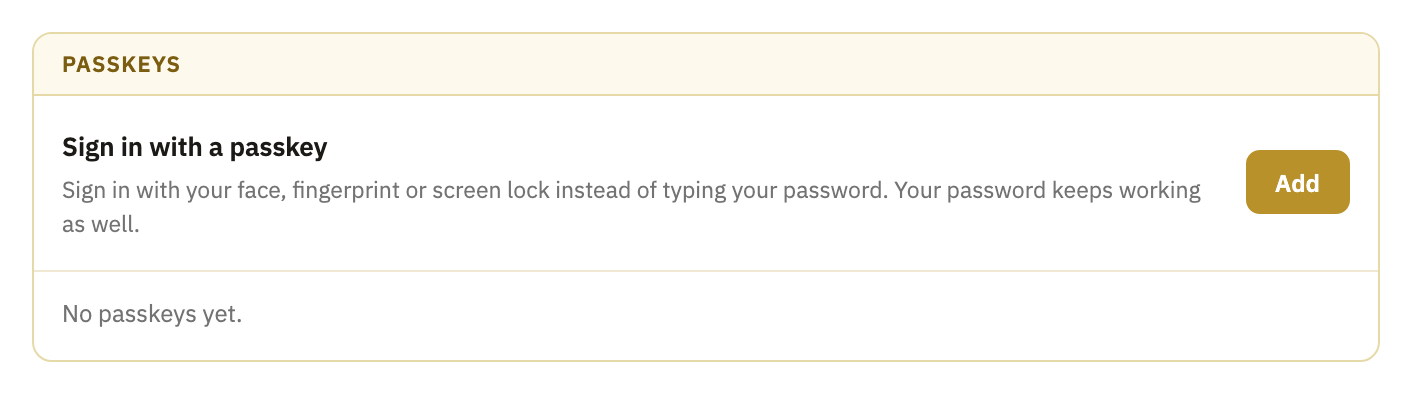
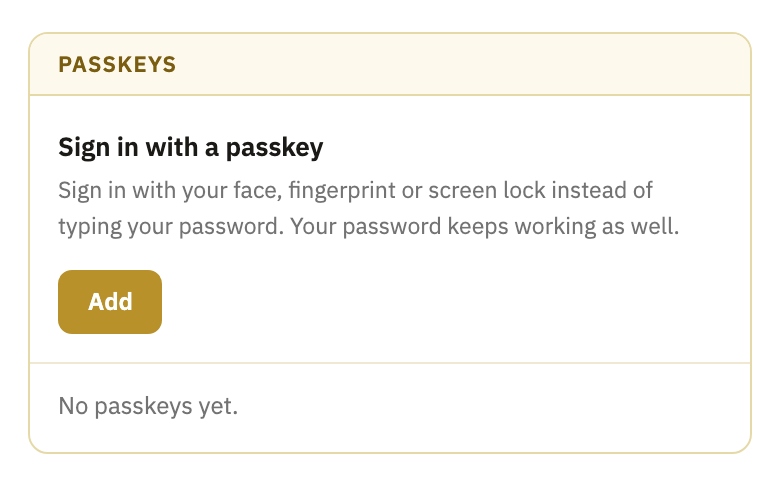
- Confirm it's you. With a password, type it, and select Continue. Without one, select Confirm, and use a passkey you already have.
- Select Make passkey, and let your device save it.
You can sign in with it straight away. Add one more for each device that doesn't share a password manager with the first, such as a second phone or a security key.
Remove a passkey
Under Passkeys, next to the passkey, select Remove, then Remove again to confirm. An account with no password always keeps at least one: to replace your only passkey, add the new one first.
If you lose your passkeys
With a password, sign in with it, and add a new passkey. Without one, you need a confirmed recovery email:
- On the sign-in page, select Sign in with a passkey, and close the window your device opens.
- Select Lost your passkey?
- Type your Username, and select Send reset link.
- Open the email “Make a new passkey”, and select its link within 15 minutes.
- Select Make a new passkey, and let your device save it. Your old passkeys stop working, and you're signed out on every other device.
- The page then shows a recovery code. Tick I have written down my recovery code, and select Go to my mail.
Good to know
- A good password
- At least 10 characters, with no rules about symbols or capitals. A few ordinary words in a row are easier to remember than a short password full of symbols, and harder to guess.
- Passwords Clova won't take
- One that has turned up in a breach of another site, or one with your username in it.
- What Clova keeps
- Your password only as a hash, and for a passkey only its public key. Your face and fingerprint never leave your device.
- Only Clova can use your passkey
- A passkey works only on the site it was made for, so a site pretending to be Clova can't use it.
- An account made with a passkey
- It has no password, and signs in with its passkeys. Signing up usually starts with a passkey, with Use a password instead under it.
Did this help?
Thank you for telling us.