Account and plans · Guide
Change or cancel your plan
You want more than Free gives you, a different plan or billing period, or to stop paying and go back to Free.
Your plan is in Settings, under Plan. Moving to a bigger plan happens at once. Moving to a smaller one, or cancelling, waits until the period you've paid for runs out, and nothing is refunded.
Upgrade from Free
- Select Upgrade to Pro, at the foot of the sidebar. On a phone, select More, then Upgrade.
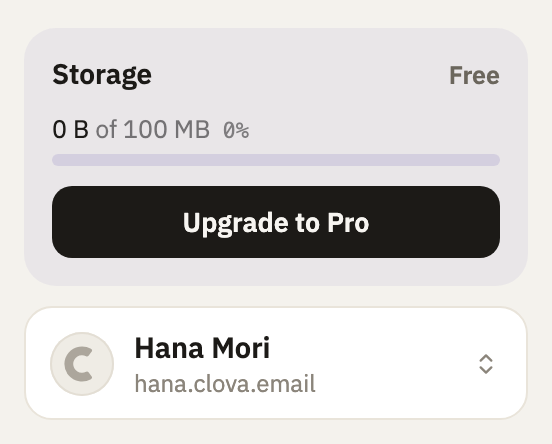
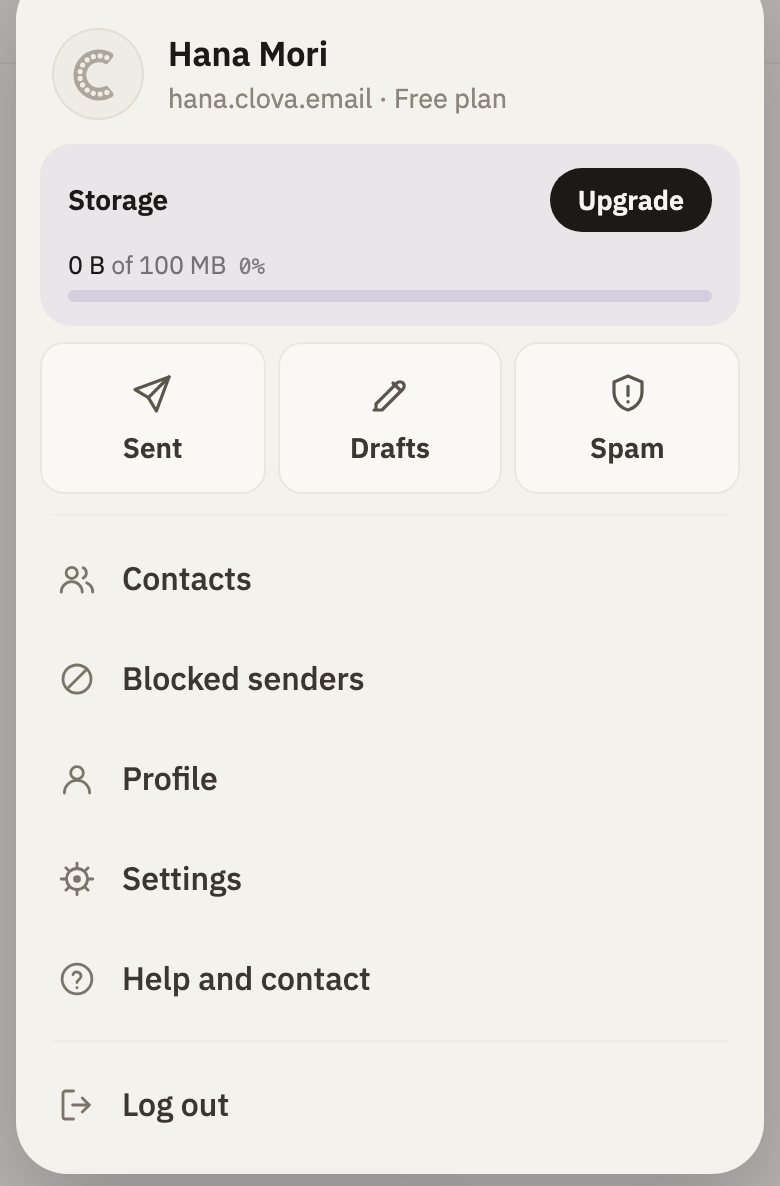
- Select Upgrade.
- Choose Monthly or Yearly.
- Under the plan you want, select Choose Pro or Choose Business.
- Type your card's details into the form.
- Select the button with the price on it, such as Pay $30.
Your plan changes as soon as the payment goes through. The card's details go straight to Stripe, which takes the payments, and never reach Clova.
Move to another plan
- In Settings, under Plan, select Change plan.
- Choose Monthly or Yearly.
- Under the plan you want, select its button, such as Choose Business.
A bigger plan starts straight away, and so does yearly billing for the plan you're on. The difference for the rest of this period is charged to the card you pay with.
A smaller plan waits until this period runs out, and so does monthly billing for the plan you're on. Nothing changes until then, and nothing is refunded. To call it off, select the button that keeps your plan, such as Keep Pro.
Cancel
- In Settings, under Plan, select Cancel subscription, at the bottom.
Your plan keeps working until the end of the period you've paid for. Then the account moves to Free, and nothing is refunded. To keep your plan after all, select Keep my plan before then.
Update your card
- In Settings, under Billing, select Update card.
- Type the new card's details into the form.
- Select Save card.
If a payment had failed, it's tried again on the new card as soon as you save it.
Your bills are under Billing history, on the same page: select Receipt to see one, or View for one that's still due. Receipts, and warnings about payments, are also emailed to your main permanent address here.
Good to know
- Addresses past a smaller plan's limits
- When a smaller plan starts, the permanent addresses and prefixes past its limits are switched off, and a notice at the top of your mail says so. The address you signed up with stays on, then the ones you used most recently. A switched-off address bounces new mail and keeps what it has. Choose which are on in each one's settings, with Enable, within your plan's limits.
- Forwarding past the new allowance
- Forwarding addresses past the new plan's allowance are paused, and their inboxes keep their mail here.
- A domain of your own
- After a move off Business, a domain of your own takes mail for 30 more days, then stops. Nothing already delivered is touched, and moving back to Business brings it back at once.
- More mail than the new storage
- If your mail takes more room than the new plan has, new mail is turned away for now, and the senders' servers try again later. Drafts can't be saved or sent either. Delete mail to make room.
- No mail is deleted
- No change of plan deletes any mail.
- If a payment fails
- Your mail keeps arriving. After a week, sending pauses, and it comes back as soon as a payment goes through. After a month, the account moves to Free and can send again, and a domain of your own takes mail for 60 days more. Clova checks once a week, so each step can come up to a week later.
- When you can't change plan
- Not while a payment is failing: update your card first. Not while your plan is ending: select Keep my plan first. And not while your account is closing: recover it first.
Did this help?
Thank you for telling us.