Account and plans · Guide
Use your own domain
You own a domain, such as yourcompany.com, and want your addresses at it. On the Business plan, bring it here.
With Business, your addresses can be at a domain you own, such as yourcompany.com. You add the domain in Settings, publish a few DNS records where it's registered, and Clova checks them. Everything you have now keeps working.
Start adding it
- Open Settings from the account menu: select your name at the foot of the sidebar, or More on a phone.
- Select Account.
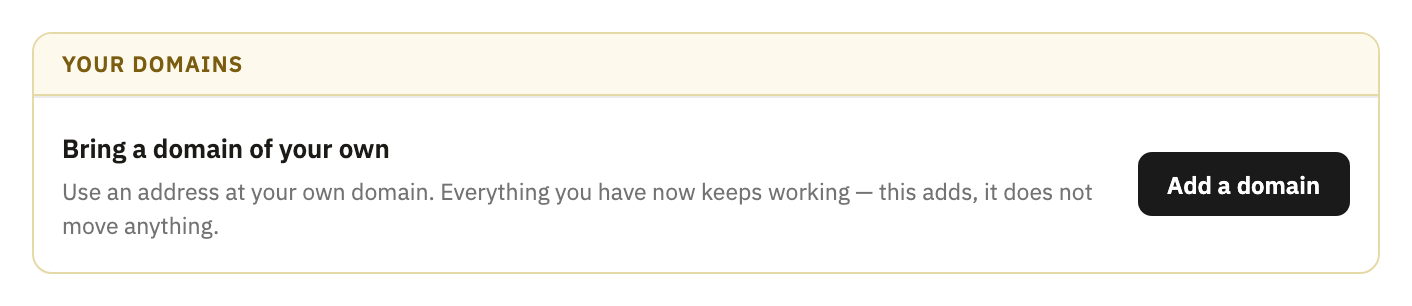
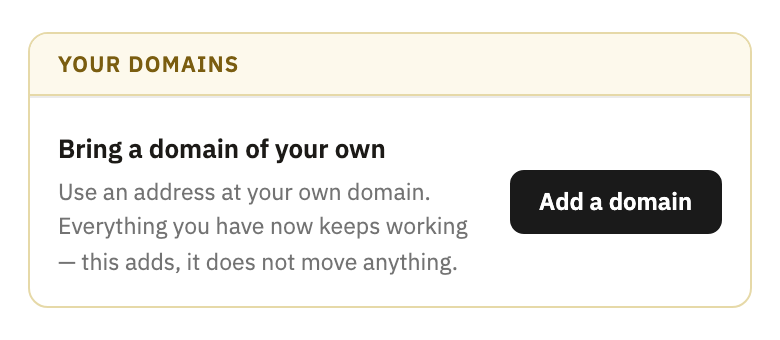
- Under Bring a domain of your own, select Add a domain.
- Under Which domain?, type your domain.
- Select Continue.
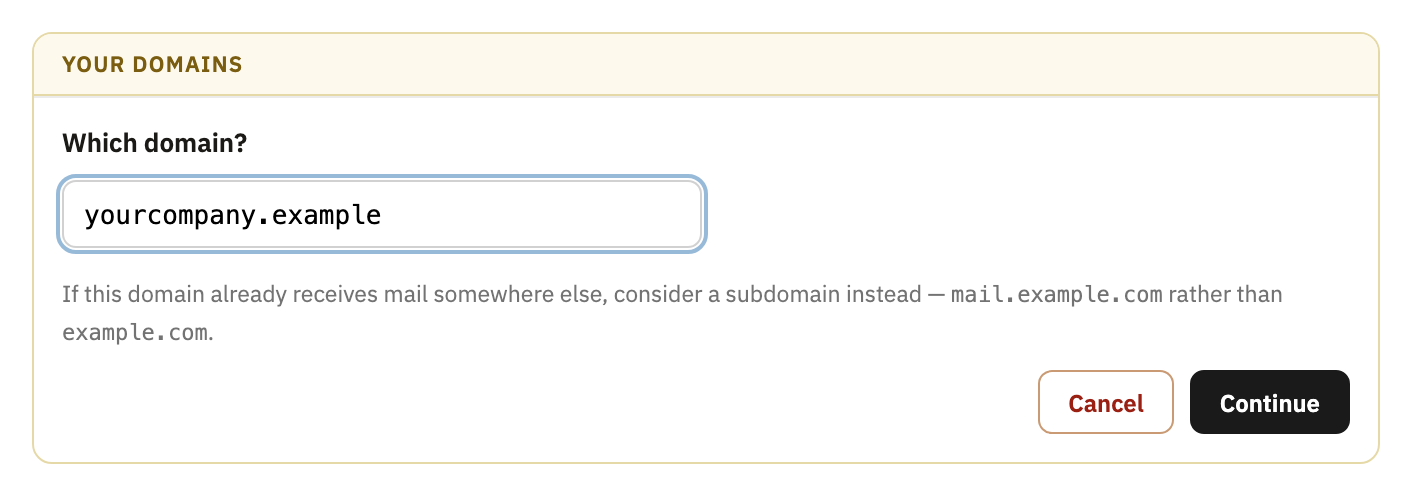
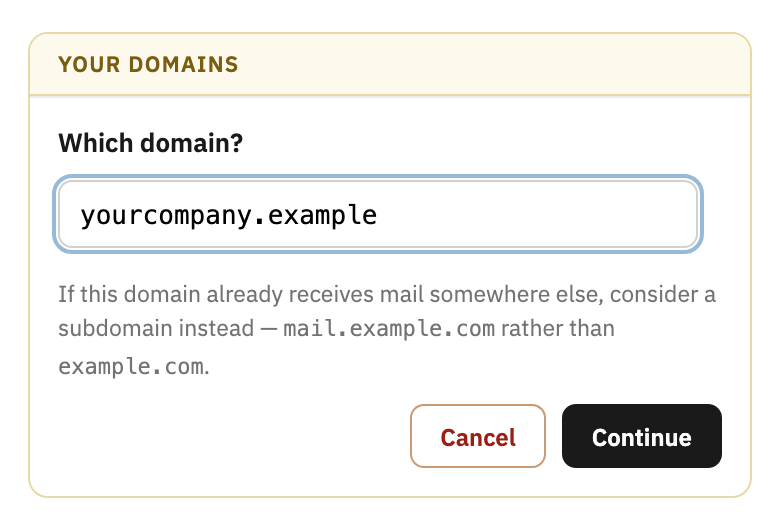
If the domain already gets mail somewhere else, use a subdomain of it instead, such as mail.yourcompany.com, so that mail keeps going where it goes now.
Publish the records
Clova lists the records to publish, under Publish these for and your domain. Add each of them in your DNS editor, at the company where your domain is registered. Copy all records copies the whole list, to send to whoever looks after your DNS.
- A TXT record named
_clova-challengeproves the domain is yours. Its value is your domain's alone. Leave it in place. - An MX record named
@brings the domain's mail here. Remove any other MX records it has. - A TXT record named
@, startingv=spf1, lets Clova send as your domain. If the domain already has one, addinclude:clova.emailto it rather than adding a second. - A TXT record whose name ends in
._domainkeysigns the mail you send. - A TXT record named
_dmarcis optional. It has other mail servers send reports about your domain's mail, without changing how they treat it.
@ stands for the domain itself. Copy each value from the screen.
Add the domain
DNS changes can take a few minutes to show, sometimes longer. You can leave and come back.
- Once the records are published, select Check again.
- When Clova finds the first record, select Add this domain. The others can follow later.
Mail to your addresses at the domain arrives here once its MX record is in place.
Choose where your addresses show
Once it's added, Your domains lists the new domain beside your Clova one. Under Which domain your addresses are shown at, choose one. It's the one you see in the sidebar, copy, and send new mail from. Mail arrives at all of them either way.
Good to know
- Every address works at each domain
- An inbox takes mail at all your domains:
shop@yourname.clova.emailandshop@yourcompany.comreach the same inbox. As at your Clova domain, mail to an address you haven't made is bounced, unless it starts with one of your prefixes. - Keep the first record
- Clova checks it every week. If it goes missing, a notice warns you for 30 days, then shows as an error for 30 more, and after 60 days the domain stops taking mail. Nothing is deleted, and publishing the record again brings the mail back at the next weekly check.
- Leaving Business
- After you move off Business, the domain takes mail for 30 more days, or 60 if payments failed. Then mail to it is refused, and none can be sent from it. Nothing already delivered is touched, and moving back to Business brings the domain back at once.
- Signing up with your domain
- When you sign up with a username, you can choose Custom domain… at the end of the name box and type your domain. The account is then named after the domain, and you sign in as it, with a password. Business is paid for before the account is made.
- Coming back later
- Clova holds a domain you've started adding for 7 days. Start again with the same domain within that time, and its first record is the same. After that, the first record's value changes.
Did this help?
Thank you for telling us.