Account and plans · Guide
Your profile, language and photo
You want your mail to go out under your name, Clova in your language, or a photo of yourself on your profile.
Your profile is who you are on Clova: your name, the language Clova speaks to you in, and your photo. Mail you send shows your name beside your address.
Change your name
- Open Settings from the account menu: select your name at the foot of the sidebar, or More on a phone.
- Select Profile.
- Type your name under Name.
- Select Save.
Saving needs a name and the year you were born. The day and month of your birthday, and your phone number, are optional.
Choose the language
On the same page, choose your language under Language: English or Português (Brasil). It's saved as you choose it, and the page reloads in that language.
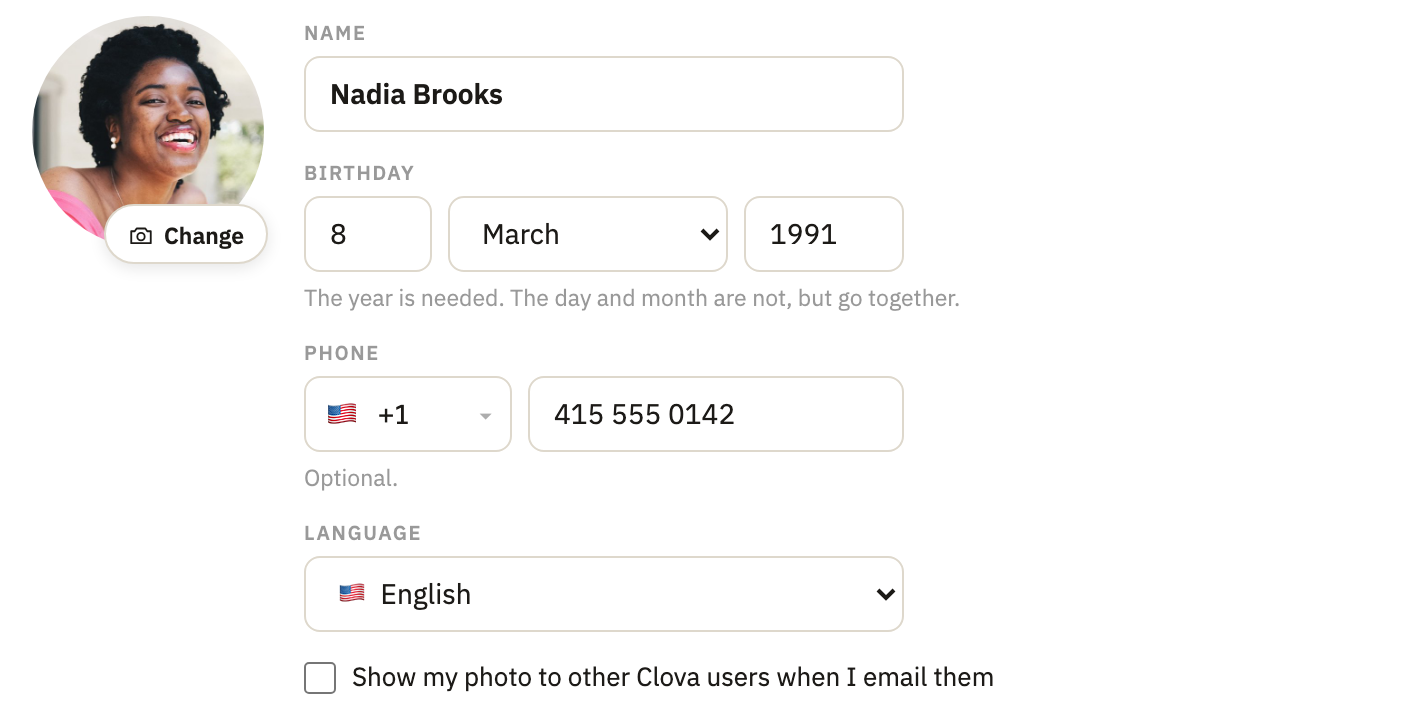
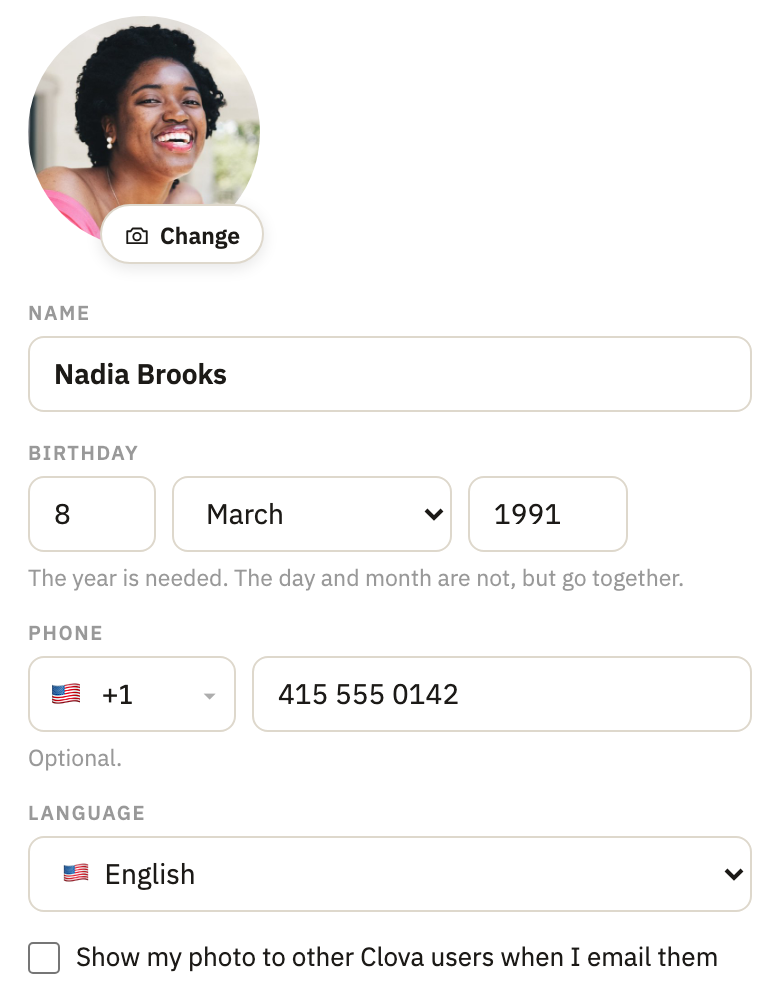
Your choice goes with you to every device you sign in on.
Add or change your photo
- On the same page, select Add photo, on the round picture. If you already have one, it says Change.
- Choose where the photo comes from. On a computer, select Take a photo or Choose a file. On a phone, select Take a photo, which opens the camera, or Photo library.
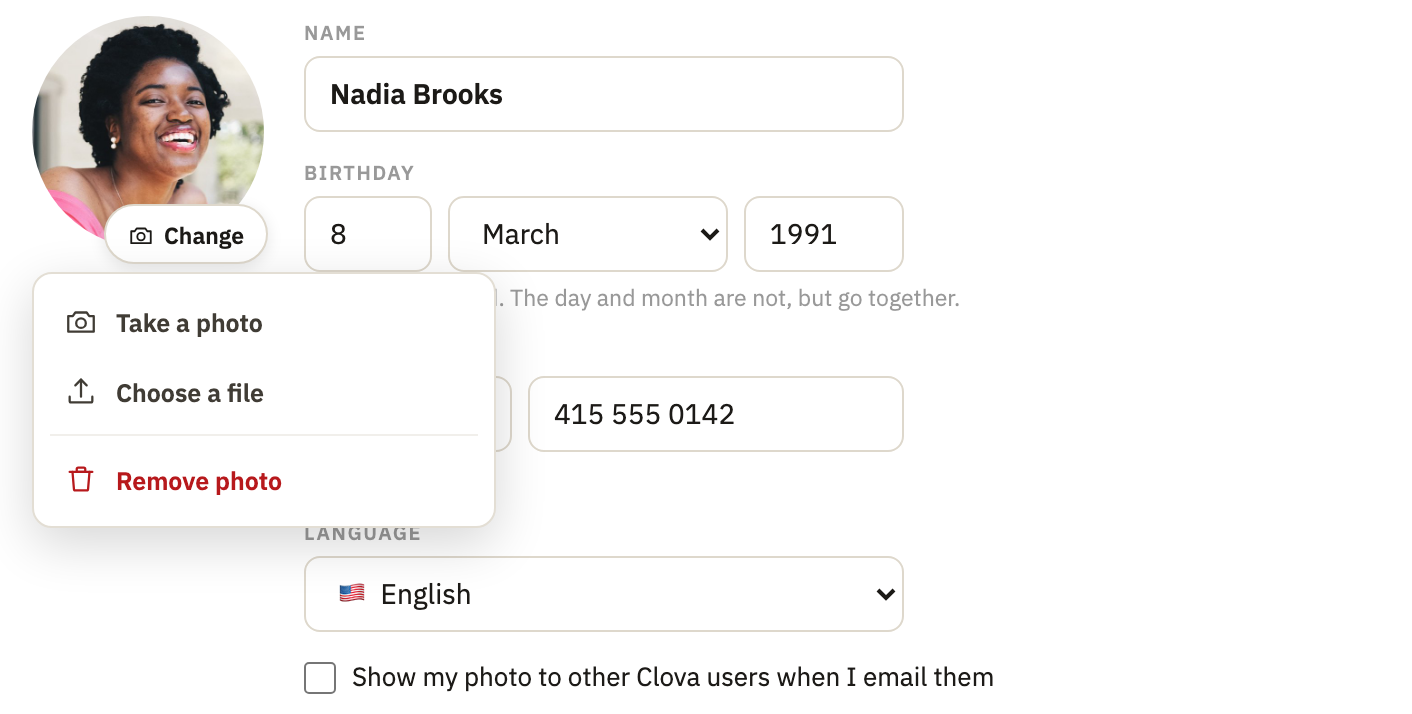
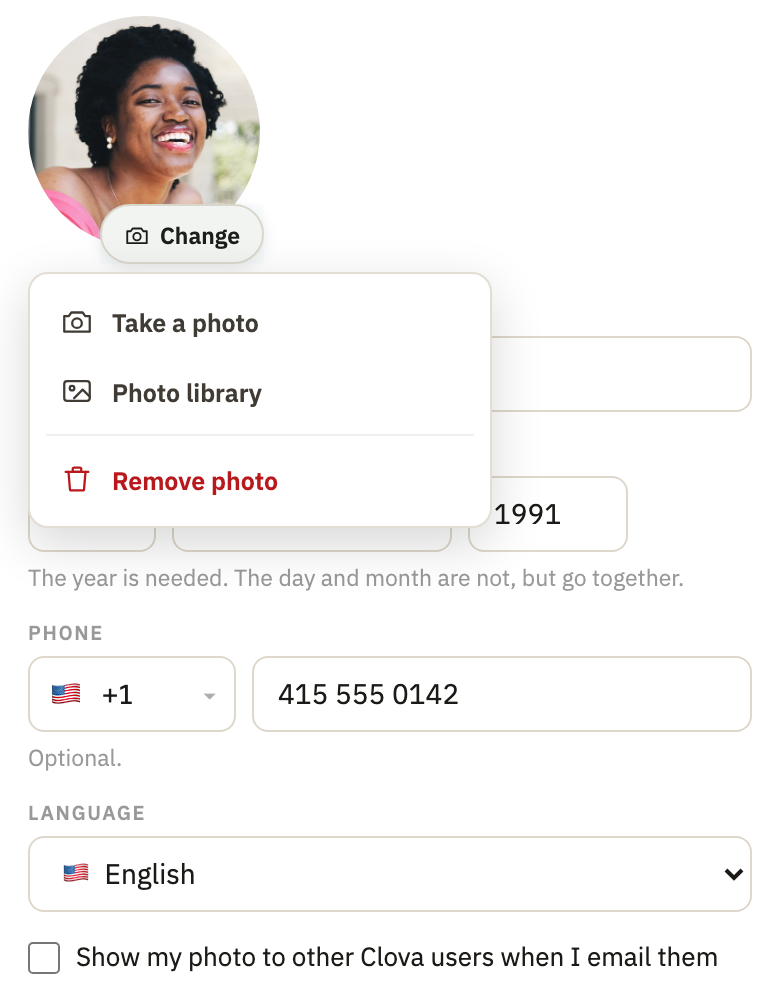
- Select Save. Until you do, the page says Save to keep this picture.
A photo can be a JPEG, PNG or WebP file of up to 10 MB. Clova crops it around your face.
To take your photo off, select Change, then Remove photo. It goes at once.
Good to know
- Who sees your photo
- Once a photo is saved, a box under Language decides whether other Clova users see it beside the mail you send them: Show my photo to other Clova users when I email them. A photo you add yourself starts out shown. Who can see my photo?
- Before you sign in
- Clova follows your browser's language. The switch at the top of the home page, marked EN or BR, changes it for that visit. Once you sign in, the language you chose on your profile comes first.
- Everything else follows
- Emails from Clova are in the language you chose, and so are the notices at the top of your mail. The privacy policy and the terms switch with the app.
Did this help?
Thank you for telling us.