What's new · Article
Clova on Android
Clova's Android app is on Google Play, with notifications as mail arrives, your recent mail on the phone for when there's no signal, and the website's settings, down to forwarding and a domain of your own.
Clova now has an app for Android, on Google Play. It's your account in an app of its own: the same addresses, the same mail and the same settings as on the website, and a change in one shows in the other. It runs on phones, foldables and tablets with Android 12 or later.
The pictures here are of Janet's account, from How Janet sets up her mail.
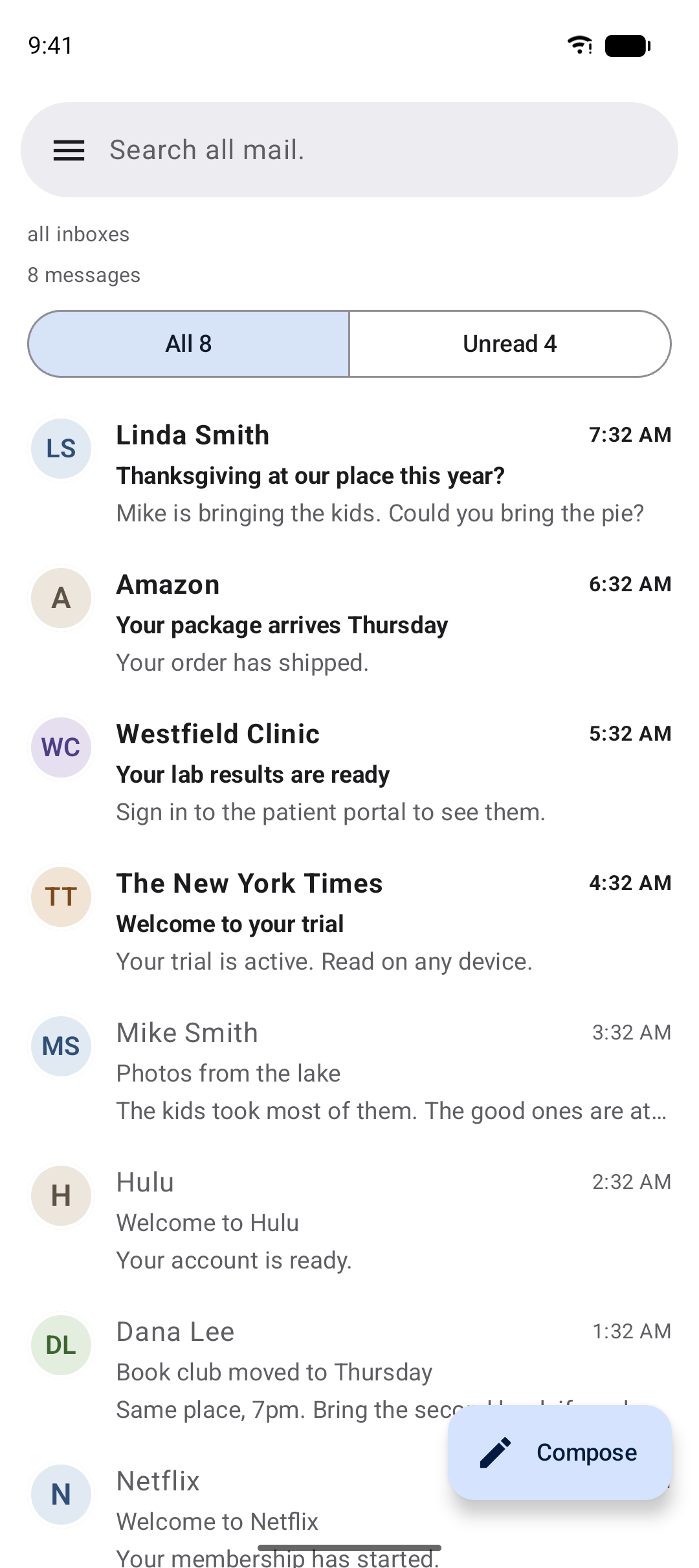
New mail, as it arrives
When mail arrives in any of your inboxes, your phone tells you who it's from, its subject and how it starts. Select the notification, and the message opens in the inbox it arrived in. Several show together, under Clova. Spam doesn't notify you, and nor does mail you send.
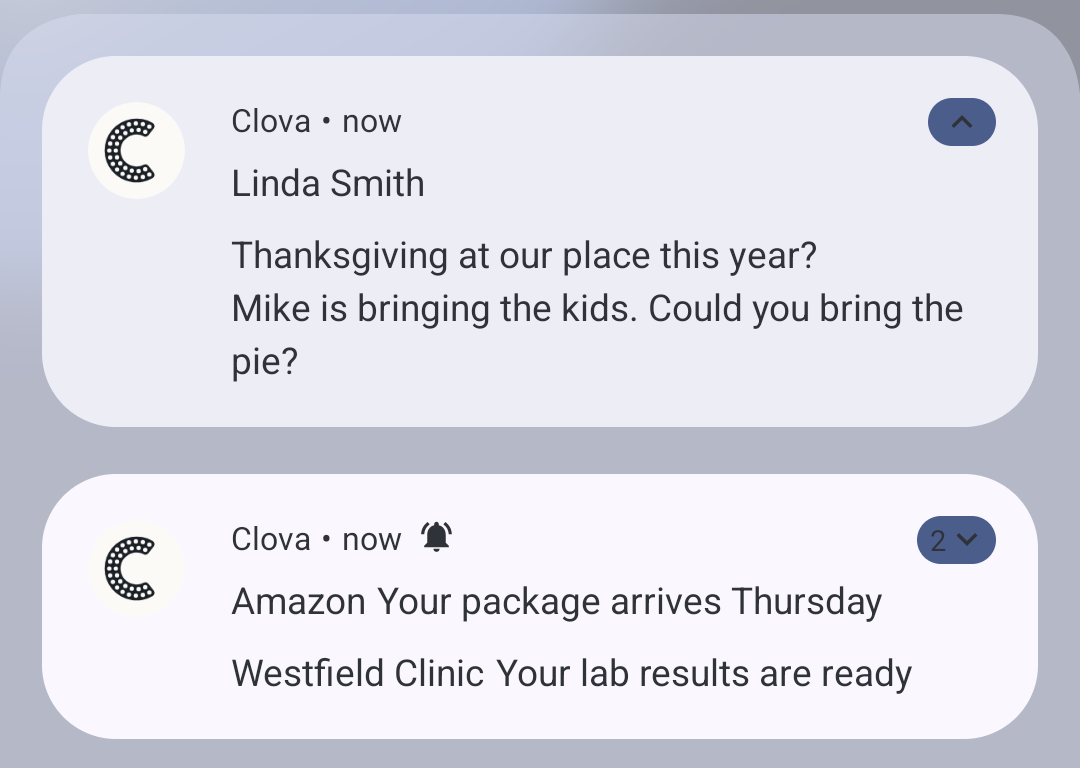
Notifications reach an Android phone through Google's Firebase Cloud Messaging. All Clova hands Google is the new message's number. Your phone then asks Clova who wrote and what about, so none of your mail passes through Google. If the phone can't ask in time, the notification says only New mail.
When there's no signal
The app keeps your recent mail on the phone: the last 90 days of it, or the newest 50 MB of its text if that's less. On Wi-Fi, it downloads each message's text ahead, so it's there before you open it. It brings the copy up to date when you open the app, and about every 15 minutes while the phone is online.
So on a plane, or anywhere out of reach, you can:
- read what's on your phone;
- write, with drafts saved as you go, and send: the message goes out once you're back online;
- read, pin, delete and block, mark mail Not spam, and change your contacts, your footer, and the name, birthday and phone number in your profile;
- search the mail on your phone.
Each change shows at once, and reaches Clova as soon as the phone can.
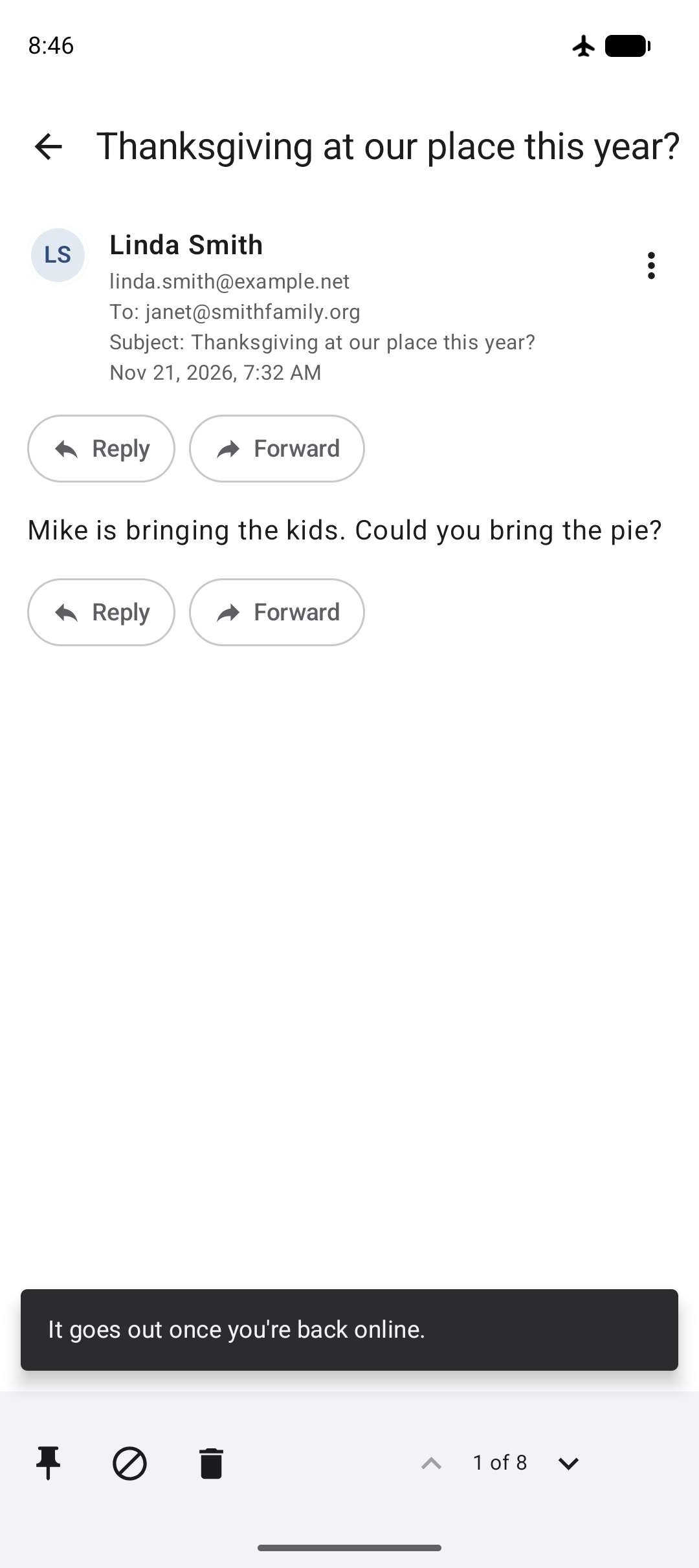
What needs a connection: opening attachments, making an inbox or changing its settings, adding a forwarding address or a domain, and your plan.
The website's settings, in the app
Almost everything you can do on the website, you can do in the app, with the same names on the same buttons.
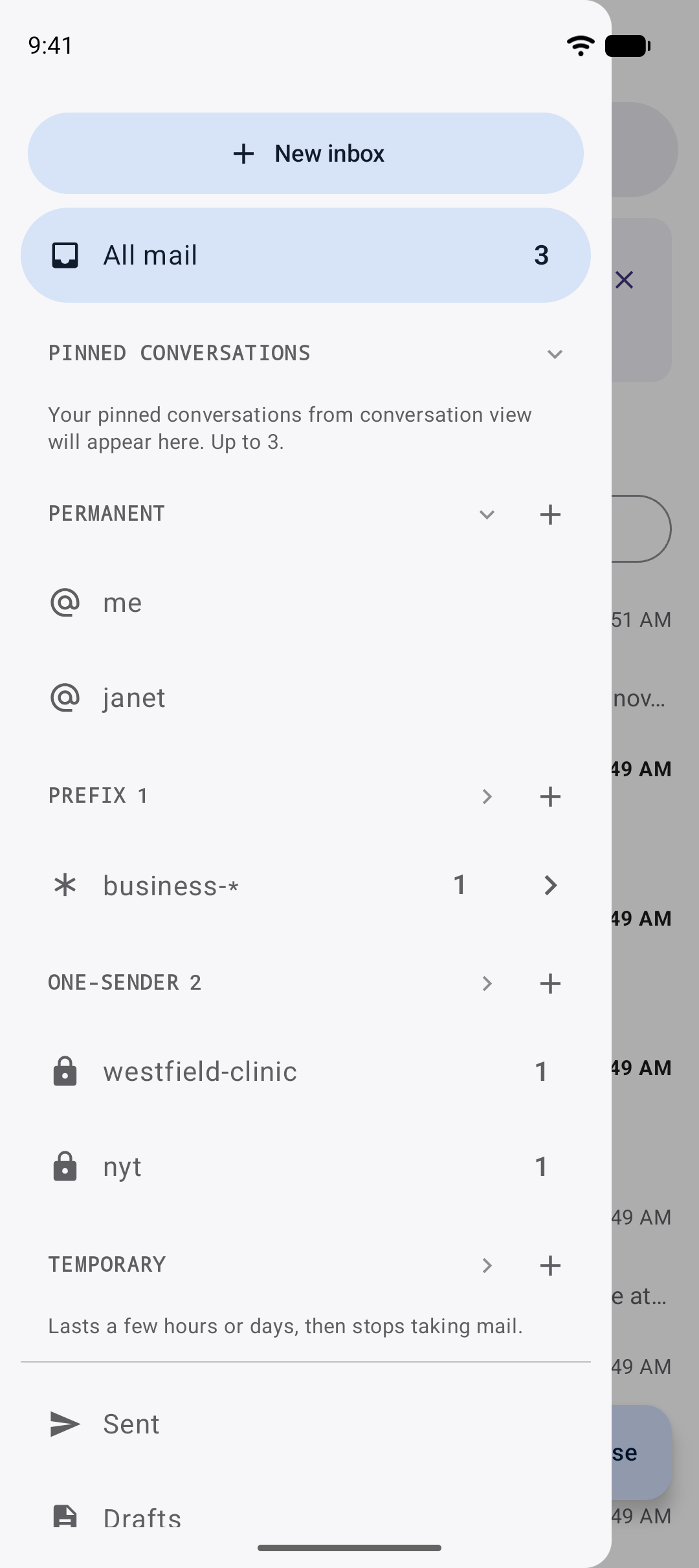
- Inboxes
- Make any of the four kinds. Change who an inbox is locked to, let more senders join for 14 days, give an inbox an end date, or switch it off.
- Reply and forward, with Cc and Bcc. Format what you write, attach photos or files, send later, search, pin up to three conversations, block a sender or their whole domain, and take mail out of spam.
- Your account
- Your plan, bought through Google Play. Your profile, footer, contacts and blocked senders. Passkeys, your password, your recovery code, and the phones signed in.
Forwarding, from your phone
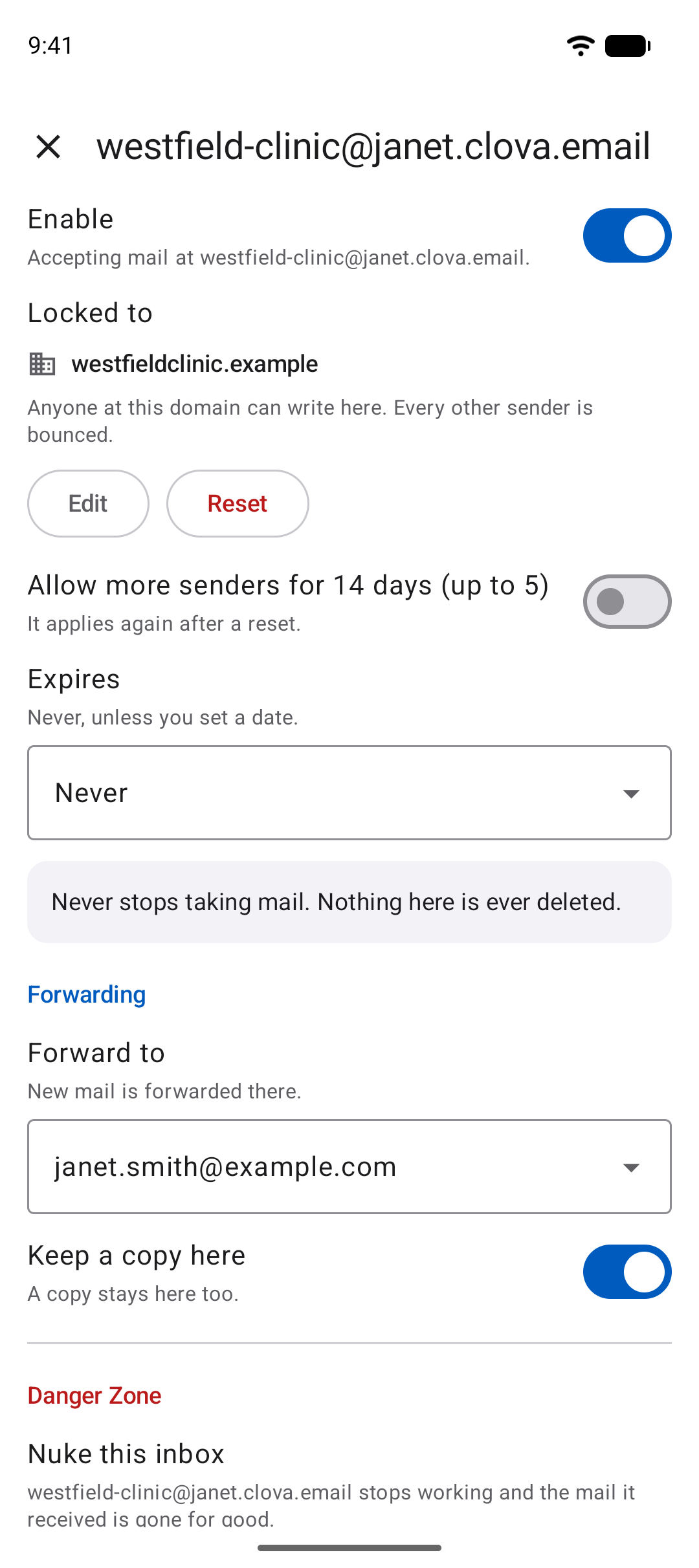
In Settings, under Forwarding, select Add forwarding and type the address to forward to. Clova mails it a link, and once the link is opened, the address is confirmed. Then, in an inbox's settings, choose it under Forward to, and whether to Keep a copy here.
A domain of your own
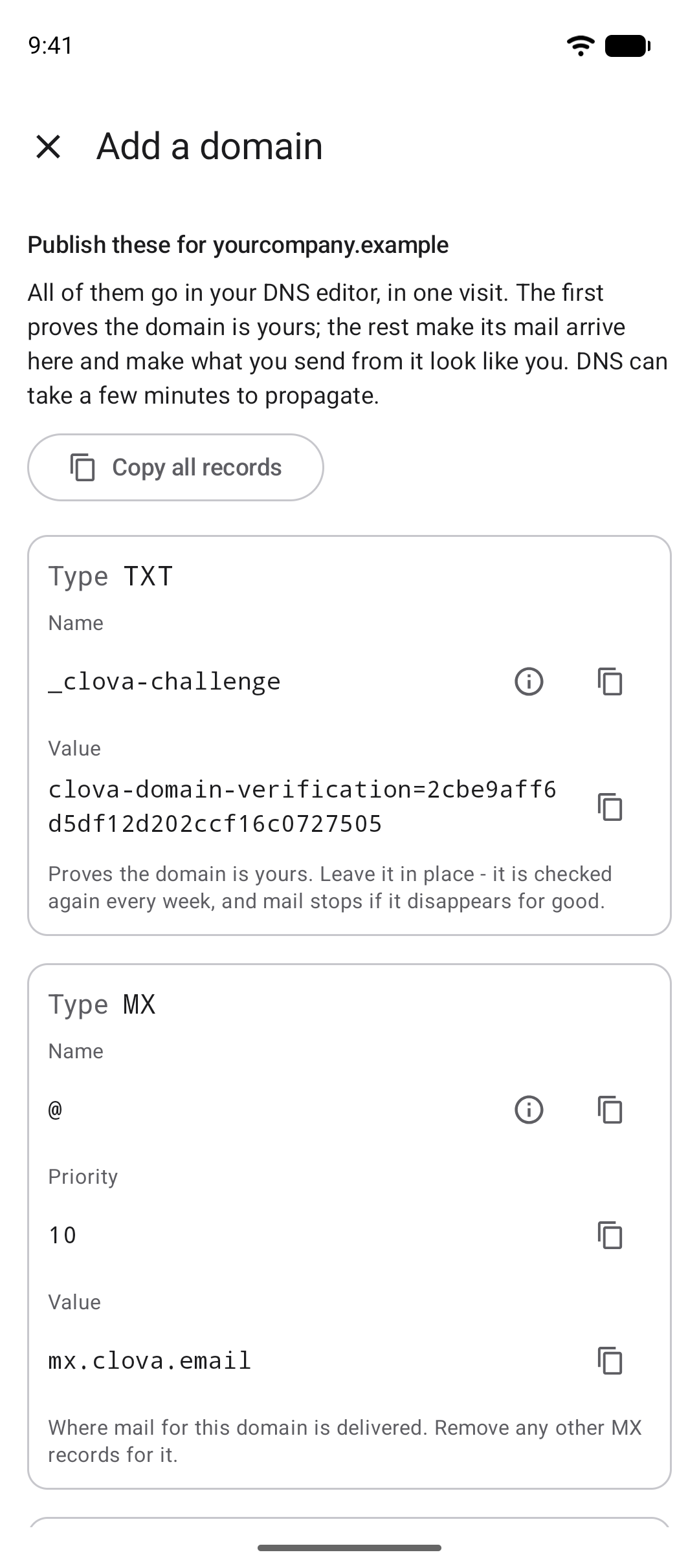
On the Business plan, you can bring a domain you own. In Settings, under Account, select Add a domain and type it. The app lists the records to publish where your domain's DNS is kept, each with a copy button, and Copy all records copies them in one go. Once they're published, select Check again: when Clova finds the first record, Add this domain adds it.
Still on the website
A few things are done on the website alone:
- Exports are made and downloaded there. The app's Open the website takes you to it.
- Developer, in Settings: personal access tokens, and the AI assistants and other apps you connect.
- A plan paid by card shows in the app, with its card and its bills, but it's changed or cancelled on the website.
- An account made with Apple signs in on the website: the app has no Sign in with Apple.
Get it
On your phone, open the Play Store, search for Clova Email, and select Install. Sign in the way you do on the website, or make a new account in the app. On a wide screen, such as a tablet held sideways, the list and the conversation you open sit side by side.
Did this help?
Thank you for telling us.