Privacy and security · Guide
Keep a recovery code
You sign in with a username, and want a way back in that doesn't depend on an email address.
A recovery code gets you back into an account with a username when you've forgotten its password or lost its passkeys, with or without a recovery email. You make one in Settings, write it down, and keep it somewhere safe. Each code works once.
Make one
- Select your name at the foot of the sidebar, or More on a phone, then Settings, then Account.
- Under Recovery code, next to Generate a new recovery code, select Generate.
- Type your password in Confirm your password, and select Generate code. An account that signs in with passkeys confirms with one of them instead.
- The code appears under Write this down now. Write it down, and select I have written it down.
Use it
- On the sign-in page, select Use a recovery code.
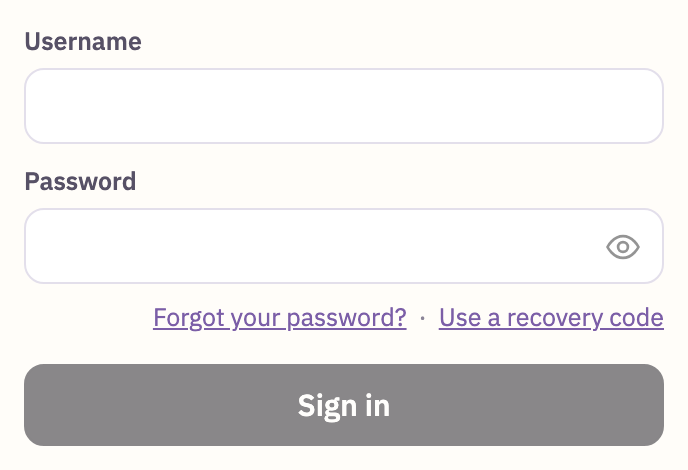
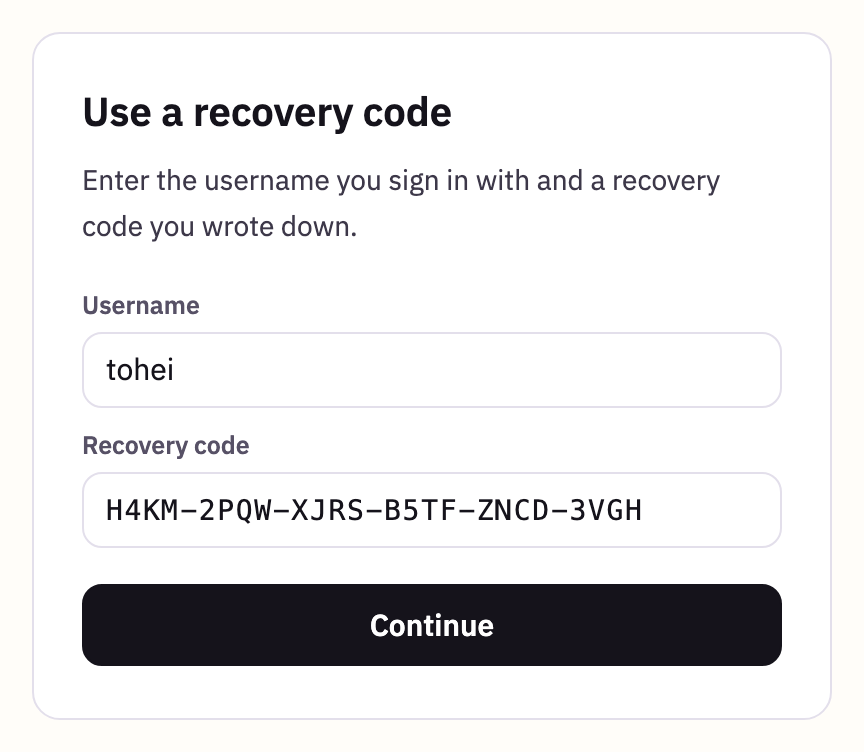
- Type your Username and your Recovery code, and select Continue. Capitals, spaces and dashes don't matter.
- Type a new password in New password and New password again, and select Set new password. You're signed in, and signed out on every other device.
- The page then shows a new recovery code: the one you used has stopped working. Write it down, tick I have written down my recovery code, and select Go to my mail.
Good to know
- One code at a time
- Making a code, using one, or changing your password gives you a new one, and the code you had stops working.
- What Clova keeps
- Only a scrambled copy. Clova can check a code you type, but can't show it to you again.
- With Google or Apple
- An account that signs in with them doesn't need a code: you get back in through them.
Did this help?
Thank you for telling us.