The Safari extension · Guide
Clova for Safari's settings
You want the extension to stay quiet on a site, to start new addresses as one-sender, or to let it on a site Safari keeps it off.
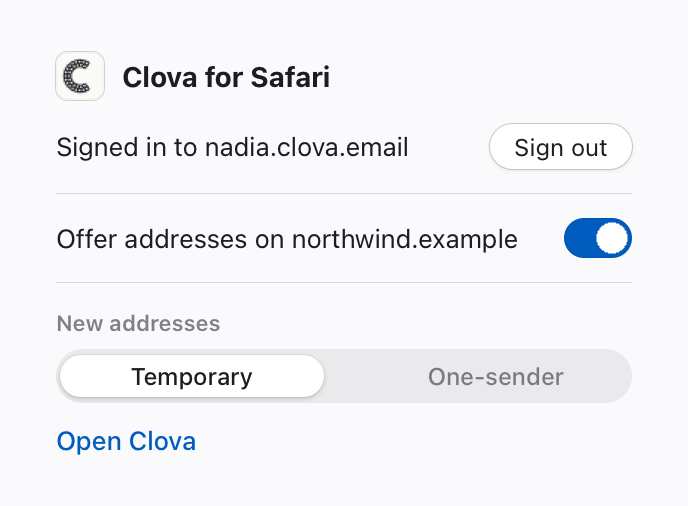
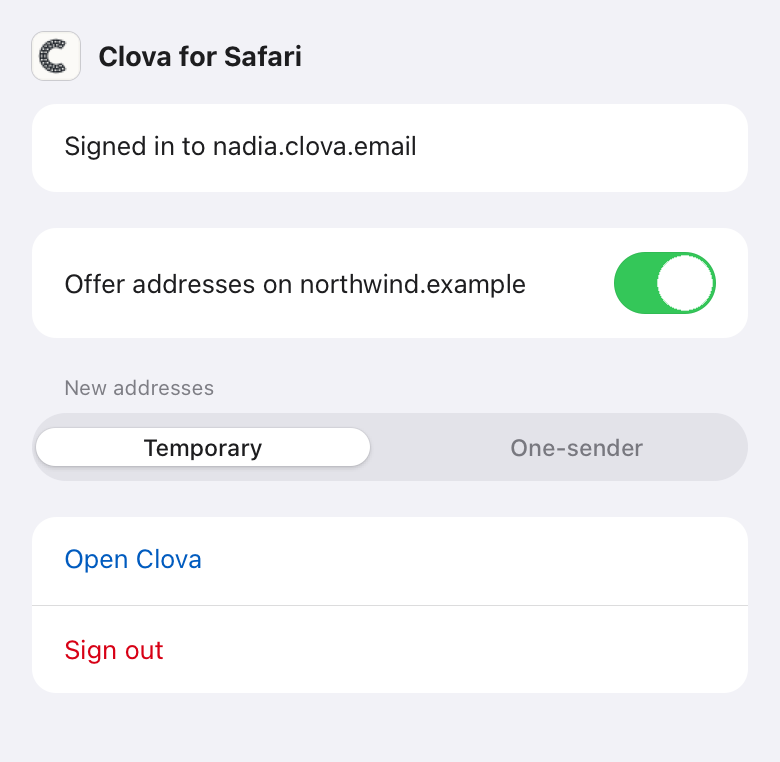
The extension's settings are behind its button: in Safari's toolbar on a Mac, and on an iPhone in the page menu at the left of the address field.
Turn it off on a site
- Open the site, and select the extension's button.
- Turn off Offer addresses on and the site's name.
Turn it on again to have the extension back there.
Let it on a site
If you allowed Clova for Safari on some sites only, its settings say so on a site it may not use: Safari hasn't allowed Clova on and the site's name.
- Select Allow on this site.
- Allow it when Safari asks.
Start new addresses as one-sender
Under New addresses, select One-sender. The card starts with it, and you can still switch it to Temporary there.
Good to know
- Settings stay
- When you sign out, and come back when you sign in again. Removing the Clova app deletes them.
- Each Mac and iPhone
- Has settings of its own.
- Open Clova
- Opens your mail.
Did this help?
Thank you for telling us.