The Safari extension · Guide
Get Clova for Safari
You want a new address of your own on every sign-up form you meet in Safari, on your Mac or your iPhone, from the Clova account you already have.
Clova for Safari is a browser extension. On a form that signs you up, it offers a new address from your account, made for that site alone. On the site's log-in form, it offers the address it made there. It runs in Safari on a Mac with macOS 26 or later, and on an iPhone with the Clova app.
Get it on a Mac
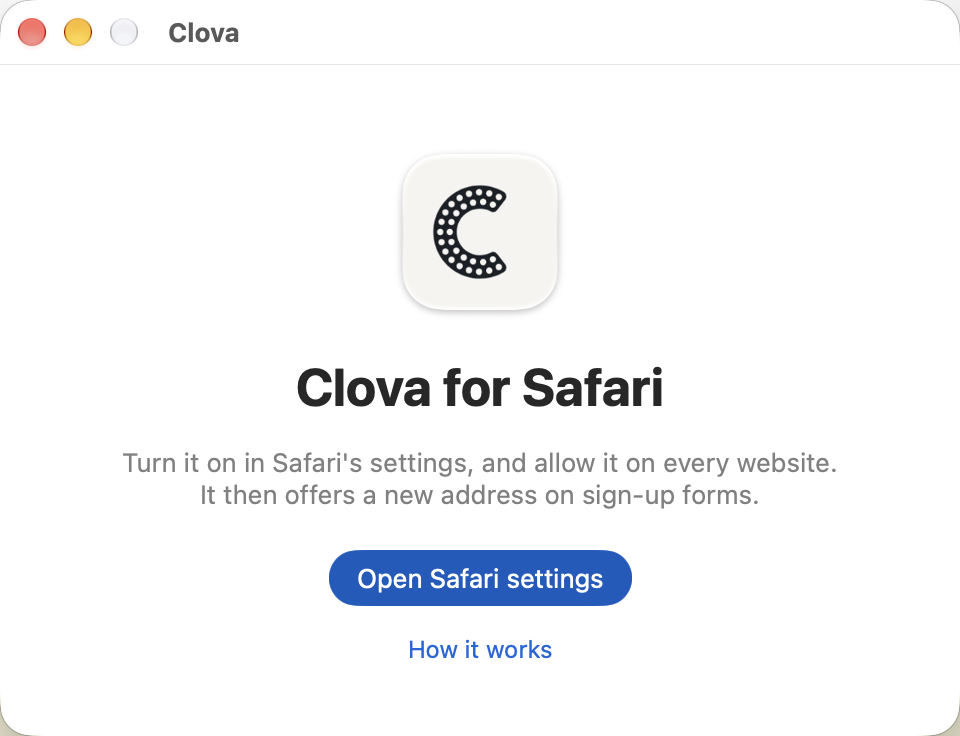
- From the Mac App Store, get Clova Email, and open it. Its window says whether Clova for Safari is on.
- Select Open Safari settings. Safari's settings open at its extensions.
- Tick Clova for Safari.
- In Safari, select the extension's button in the toolbar, and allow it on every website. Or allow it one site at a time, as you meet them.
Get it on an iPhone
- Get the Clova app: the extension comes with it.
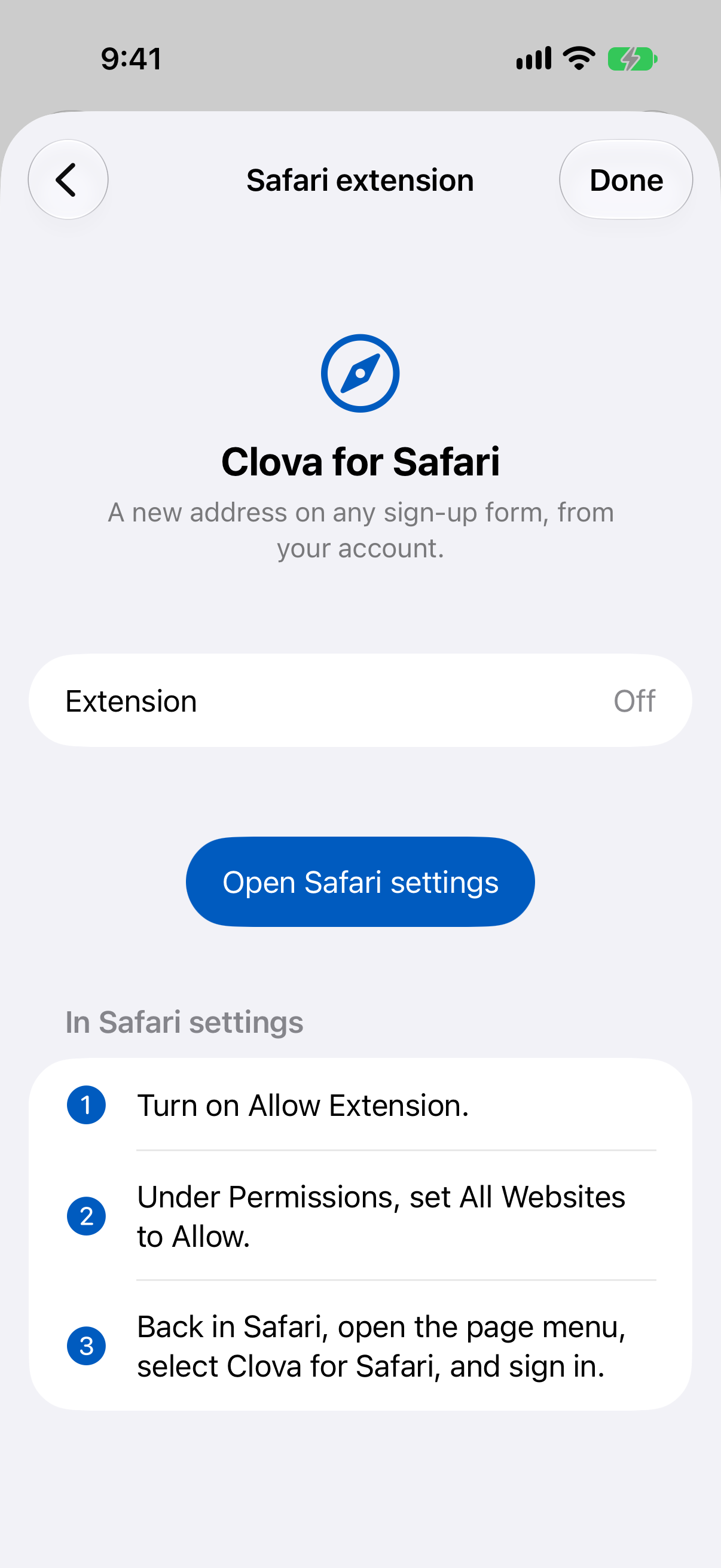
- In the app, open Settings, then Safari extension.
- Select Open Safari settings. If Settings doesn't open at Clova for Safari, go to Apps, then Safari, then Extensions, then Clova for Safari.
- Turn on Allow Extension.
- Under Permissions, set All Websites to Allow.
Sign in
- In Safari, select the extension's button: in the toolbar on a Mac, or on an iPhone in the page menu at the left of the address field. Then select Sign in to Clova.
- Safari asks whether Clova for Safari may use clova.email. Allow it: that's where your sign-in comes back to.
- Sign in to Clova in the tab that opens, if you aren't already.
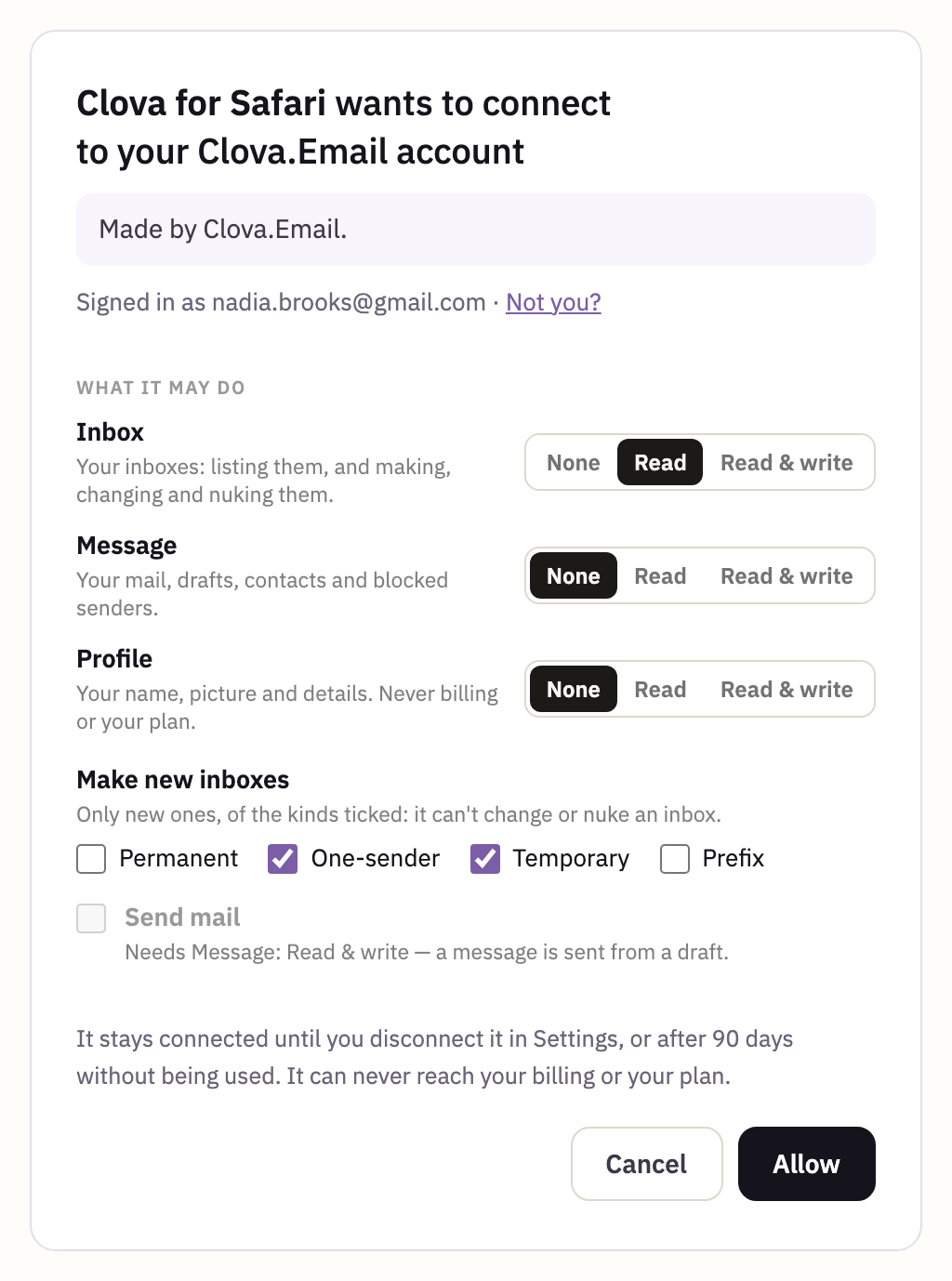
- The page says what the extension may do: see your inboxes, and make one-sender and temporary ones. Made by Clova.Email says it's Clova's own.
- Select Allow. The tab closes, and the extension is signed in.
You stay signed in as long as you use it at least once every 90 days.
What it can do
It can list your inboxes, and make one-sender and temporary inboxes. It can't read your mail, change or delete an inbox, or make any other kind. Pages never see its sign-in.
It reads the pages you open in Safari only, to find email fields. It tells Clova about a site only when you make an address there, or when it offers you a one-sender address there: the privacy policy says exactly what it keeps and sends.
Sign out
- Select the extension's button.
- Select Sign out.
To disconnect it from Clova instead, go to Settings, under Developer, and select Disconnect beside Clova for Safari.
Good to know
- Site by site
- If you allowed it on some sites only, its button says so on a site it may not use, with Allow on this site.
- Private windows
- Safari runs it there only once you allow it, in the extension's settings in Safari: Allow in Private Browsing.
- Profiles
- Safari keeps an extension off in each of your profiles until you turn it on there. Turn it on in the ones you use.
- Each Mac and iPhone
- Signs in on its own, once.
- Clearing Safari's history
- Can sign the extension out. Sign in again: the sites it made addresses for come back from your account.
- Clova's own pages
- The extension offers nothing on Clova's website.
Did this help?
Thank you for telling us.