What's new · Article
Clova in Chrome and Safari
Clova for Chrome and Clova for Safari give every site you sign up with an address of its own, offer it again when you log in, and fill in the codes and links the site mails to it.
Clova has two browser extensions: Clova for Chrome, and Clova for Safari, on a Mac and on an iPhone. They do the same things. On a form that signs you up, they offer a new address, made for that site alone. When you come back to log in, they offer that address again. And when the site mails a code or a link to it, they show it on the site's own page, where it's needed.
The pictures here are of Chrome, on the site of a newspaper made up for them, The Morning Post. On a real paper's site, such as nytimes.com or economist.com, the cards are the same.
Signing up for a newsletter
Say you've been reading The Morning Post for a while, and under an article it offers its morning briefing, every weekday. Select the box's email field, and Clova's card opens under it, with a new address.
The card starts with a temporary address, for a site you'll hear from once. A paper you mean to keep reading should get a one-sender address. Select One-sender, and the address is named after the site: morningpost. On economist.com, it would be economist. Select Use it, then Subscribe.
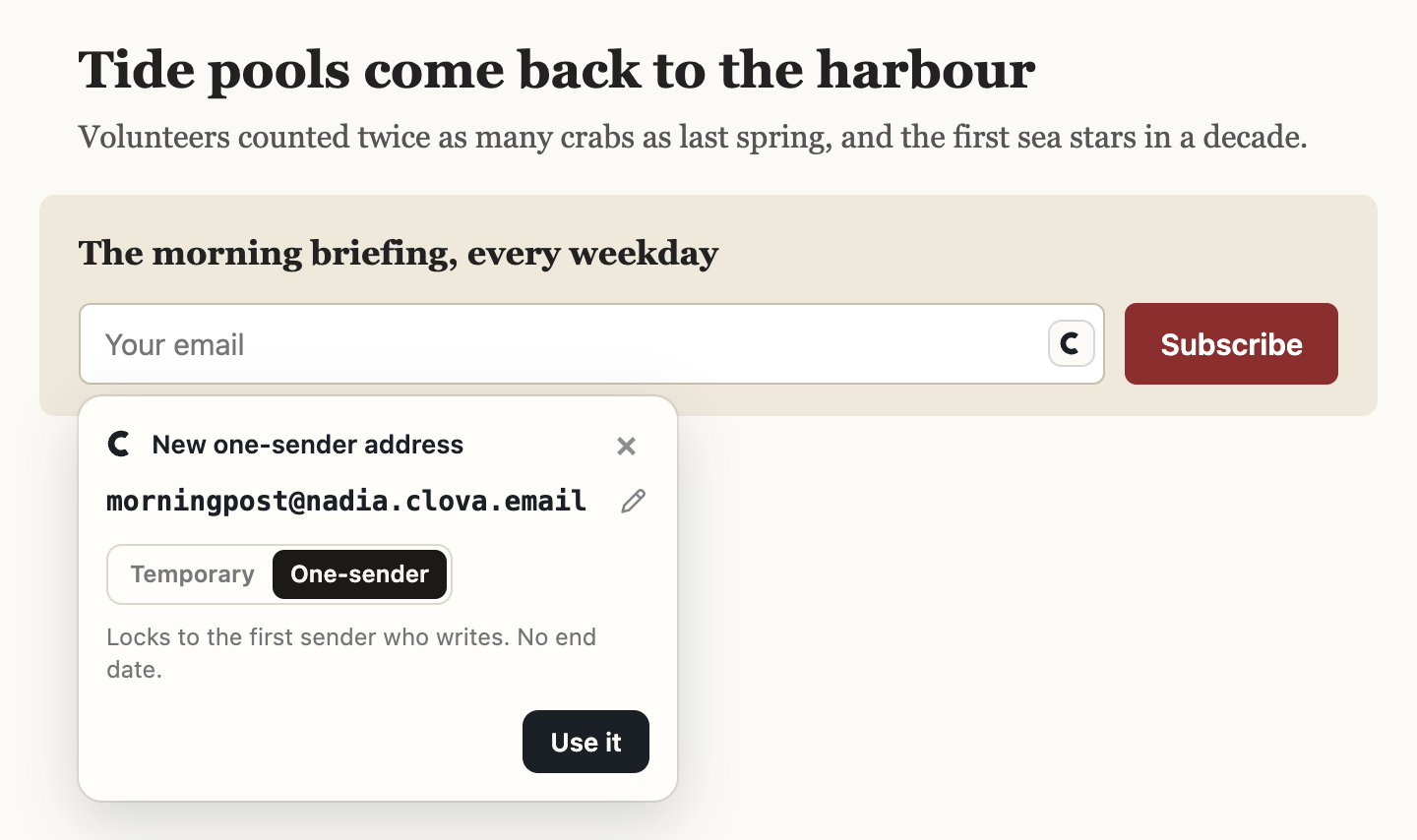
The address is made when the form is sent, and not before. A form you leave without sending makes nothing.
Confirming the address
Most papers check that an address is yours before they send it anything else. They mail it a link, and their next page says so. The extension waits for that link. When the email arrives, a card in the page's top right corner says Confirm your email, with where the link goes. Select Open, and the link opens in that tab, as it would from the email.
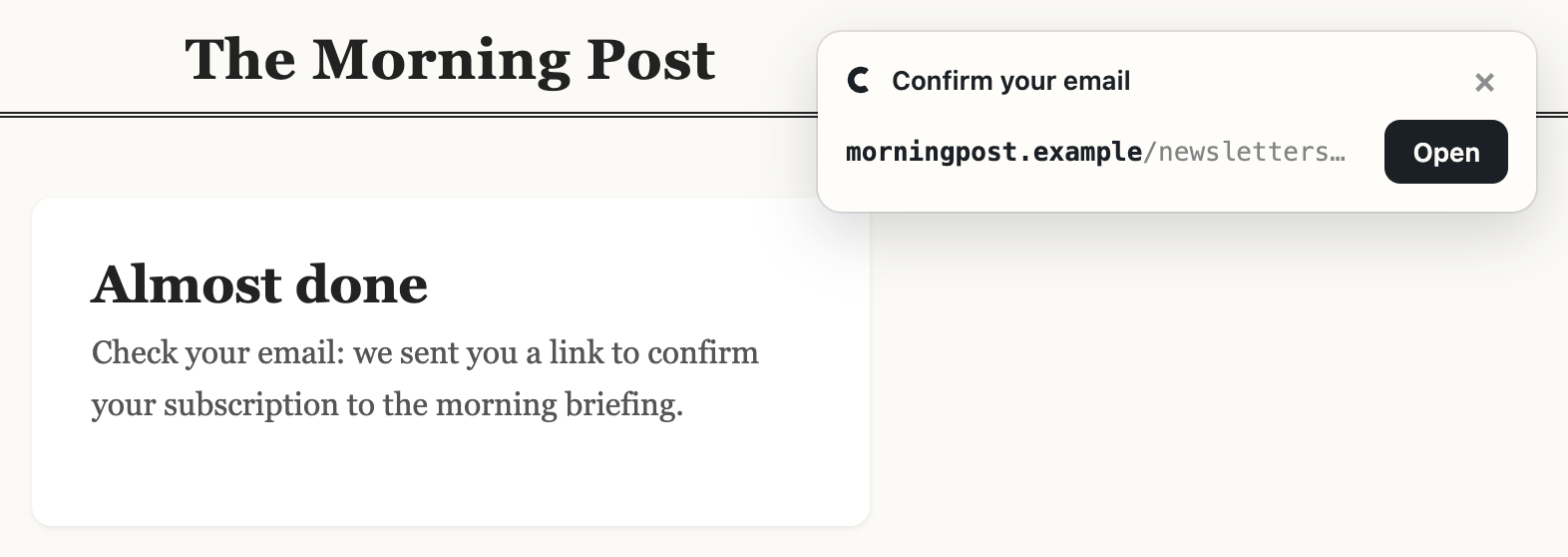
It looks for a link only in the tab you sent the form from, on that site's pages, for 15 minutes.
An inbox for the paper
In Clova, the new address is an inbox of its own, and its tip says where it came from: Made for morningpost.example via the browser extension.
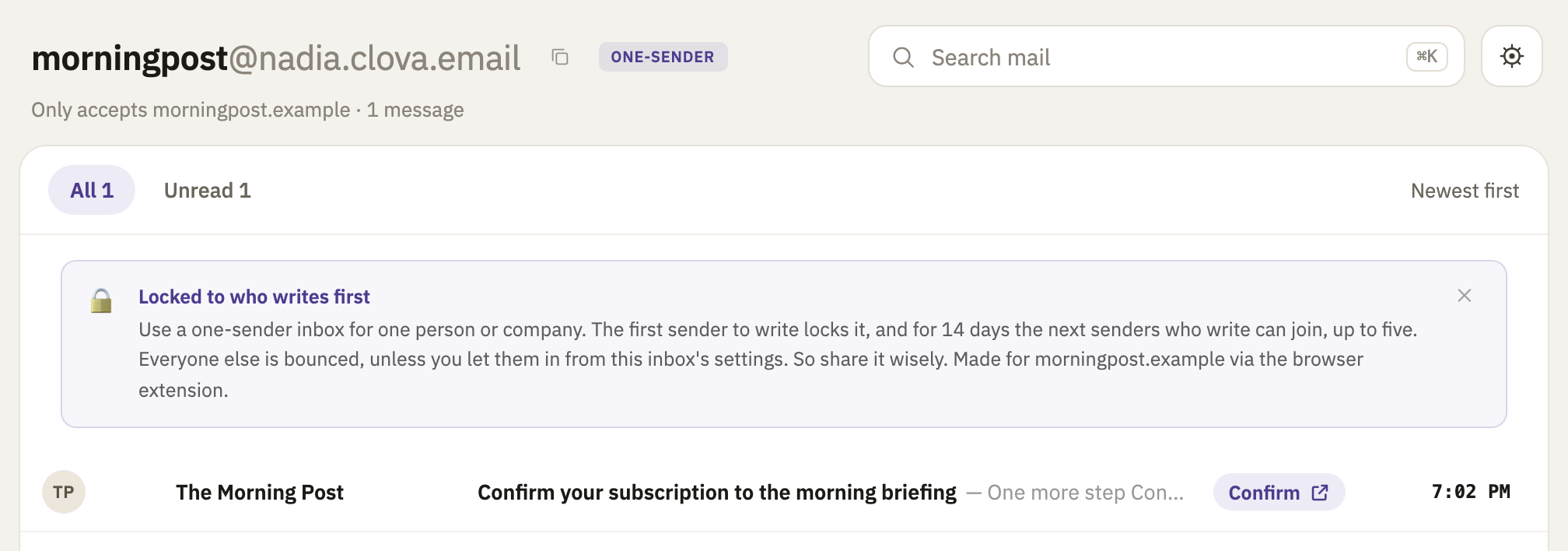
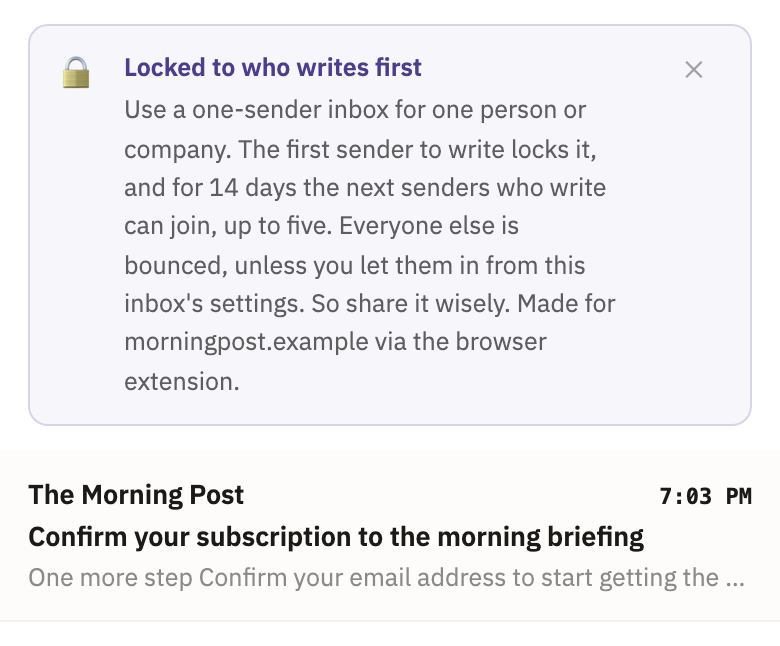
The paper's first email locked the inbox to the paper. For 14 days, the next senders who write can join it, up to five, such as the company that sends the paper's bills. After that, everyone else is turned away. If the paper's mailing list is ever sold or leaked, the address is no use to whoever has it. And if you stop reading, switch the inbox off.
Logging in with a code
A week later, you want to read the paper on another computer. On its log-in form, select the email field. The card offers the address made there: Your address for morningpost.example. You don't have to remember which address you gave which site: it's kept in your account, so the extension offers it in any browser you've signed it in to. Select Use it, then Continue.
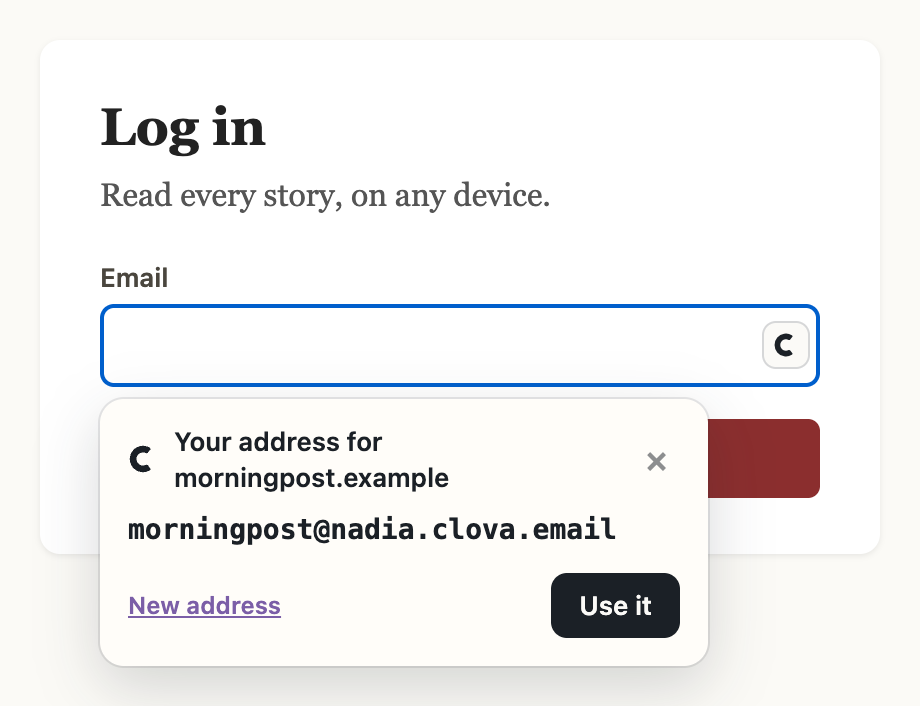
Like many sites, the paper logs you in with a code rather than a password. It mails six digits to the address, and asks for them on the next page. When the email arrives, a card under the boxes shows the code: Code from morningpost.example, just now, and the code itself. Select Fill, and it goes into the boxes, a digit in each.
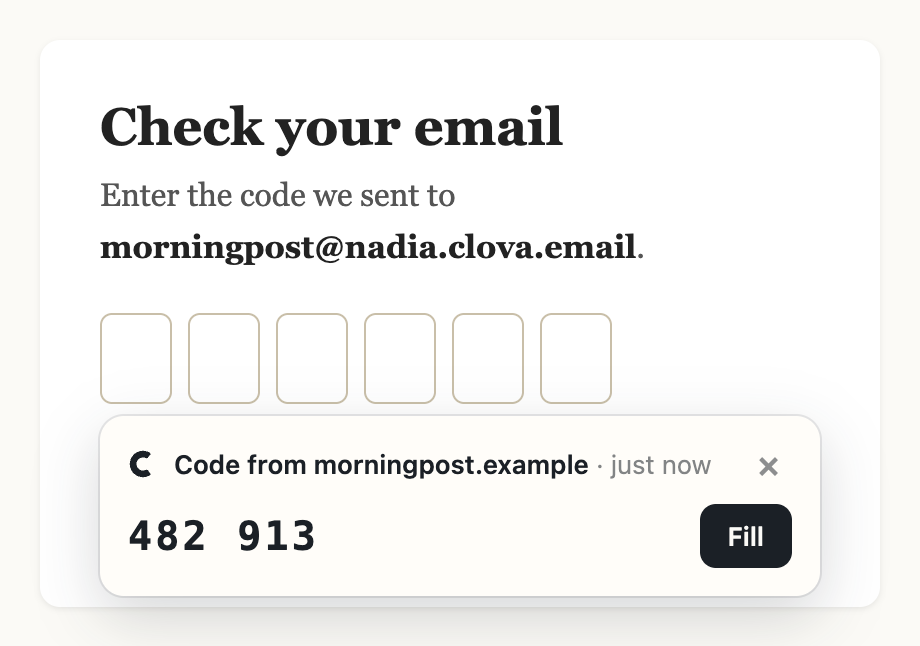
When Clova isn't sure it has found the code, the card asks Is this the code? instead. Either way, nothing goes into a field until you select Fill.
Use a code or link a site sends you
What it reads
To fill in codes, the extension asks for one more permission when you sign it in: Read one-time codes and links. That's the codes and links Clova found in mail to an address made for a site, and no other mail. It asks for them only on the site the address was made for: while one of its pages asks for a code, or for 15 minutes after you send one of its forms with the address.
It reads the pages you open in your browser only, to find email fields and code fields. Nothing of a page goes to Clova: only the site's name, when the extension names an address after it or makes one there, and when it asks for that site's code. The privacy policy says exactly what it keeps and sends.
If you signed in to the extension before it filled in codes, it asks you once. Select its button, then Allow, and allow it on the page that opens. You stay signed in.
In Safari
Clova for Safari does all of this in Safari, on a Mac and on an iPhone, with the same cards. On an iPhone, the card that offers a new address sits above the keyboard.
Get them
Both work on every plan, Free included: one-sender and temporary inboxes never count against a plan's limits.
Clova for Chrome is in the Chrome Web Store. It runs in Chrome on a computer, and in browsers that take Chrome's extensions, such as Edge and Brave.
Sign up somewhere with a new address
Clova for Safari comes with Clova's apps. On a Mac with macOS 26 or later, get Clova Email from the Mac App Store, and open it once to turn the extension on. On an iPhone, it comes with the Clova app: turn it on in the app's Settings, under Safari extension.
Did this help?
Thank you for telling us.